Usage & Billing
Available to: Account Administrators Minimum plan: Plus (Free tier has no billing)
This page covers subscription management, plan changes, seat billing, usage tracking, and overage billing in TitanRDM.
Prerequisites
- Account Administrator group membership
- A paid plan (Plus, Business, or Enterprise) for active billing features
Subscription Overview
TitanRDM uses Stripe for all billing. Your subscription includes:
- Monthly platform fee — a flat fee per plan ($90/mo for Plus, $280/mo for Business)
- Seat-based pricing — you are billed per user above the included allocation (1 developer + 2 end users), with separate rates for Developer and End User licenses
- Storage, Import, Export, and API Call limits — usage-based limits that can be exceeded with overage billing
- Billing interval — monthly (annual billing is available on Enterprise plans)
- Usage-based overage — optional metered billing when you exceed plan allowances
Seat Billing
Every plan includes 1 developer and 2 end users at no extra cost. You are only billed for seats above this allocation. Seats are billed based on current user count — not pre-purchased. When you add or remove billable users, the seat quantity is updated on your Stripe subscription immediately with prorated charges.
| Action | Billing Effect |
|---|---|
| Add a Developer user (above the included 1) | Developer seat count increases by 1 (prorated charge) |
| Add an End User (above the included 2) | End User seat count increases by 1 (prorated charge) |
| Remove a billable user | Seat count decreases by 1 (prorated credit) |
| Change license type (End User → Developer) | End User count decreases, Developer count increases (price difference prorated) |
Pricing by Plan
| Plan | Platform Fee | Additional Developer | Additional End User |
|---|---|---|---|
| Free | $0 | — (max 1 developer) | — (max 2 end users) |
| Plus | $90/mo | $35/user/mo | $15/user/mo |
| Business | $280/mo | $35/user/mo | $15/user/mo |
| Enterprise | Custom | Custom | Custom |
The platform fee covers the first 1 developer and 2 end users. Exact pricing is displayed on the plan selection page and in the Stripe billing portal.
Changing Your Plan
Upgrading
- Navigate to Admin > Account > Subscription
- Click Change Plan
- Select your new plan
- If you have an existing payment method: the plan changes immediately with prorated charges
- If upgrading from Free: you are redirected to Stripe Checkout to enter payment details
Upgrading to Business enables Single Sign-On (SSO) setup. All plans already include Dev/Test/Prod branches, so no branches are created or changed when you change plans.
Downgrading
- Navigate to Admin > Account > Subscription
- Click Change Plan
- Select the lower plan (or Free)
Because Free, Plus, and Business share the same core features, downgrading between them does not disable branching/promotions or delete any branch data.
Downgrading from Business: - Single Sign-On (SSO) is disabled — your SSO configuration is removed and all users sign in via magic link. You are warned before confirming.
Downgrading to Free: - Your subscription is scheduled for cancellation at the end of the current billing period - You retain full access until the period ends - When the subscription expires, the plan changes to Free - The Free plan allows only 1 developer and 2 end users — if you have more, you must remove the extra users before downgrading - Your branches and their data are retained
Downgrading to a lower paid plan (Business → Plus): - The plan changes immediately - Prorated credits are applied - Usage allowances are reduced to the lower plan's limits - Your branches and their data are retained
Reactivating a Cancelled Plan
If you scheduled a cancellation but change your mind:
- Navigate to Admin > Account > Subscription
- Click Change Plan
- Select your current plan again
- The cancellation is reversed and your subscription continues
Billing Portal
For detailed invoice management, payment method updates, and billing history:
- Navigate to Admin > Account > Subscription
- Click Manage Billing
- You are redirected to Stripe's self-service portal
In the billing portal you can: - View and download invoices - Update your payment method (credit card) - View upcoming charges - See billing history
Usage Tracking
TitanRDM tracks usage across several dimensions:
| Dimension | What It Measures | Plan Limit Applies |
|---|---|---|
| Storage | Total database storage across all branches (MB) | Yes |
| API Calls | Number of API requests per billing period | Yes |
| Imports/Exports | Number of import and export operations per billing period | Yes |
Viewing Usage
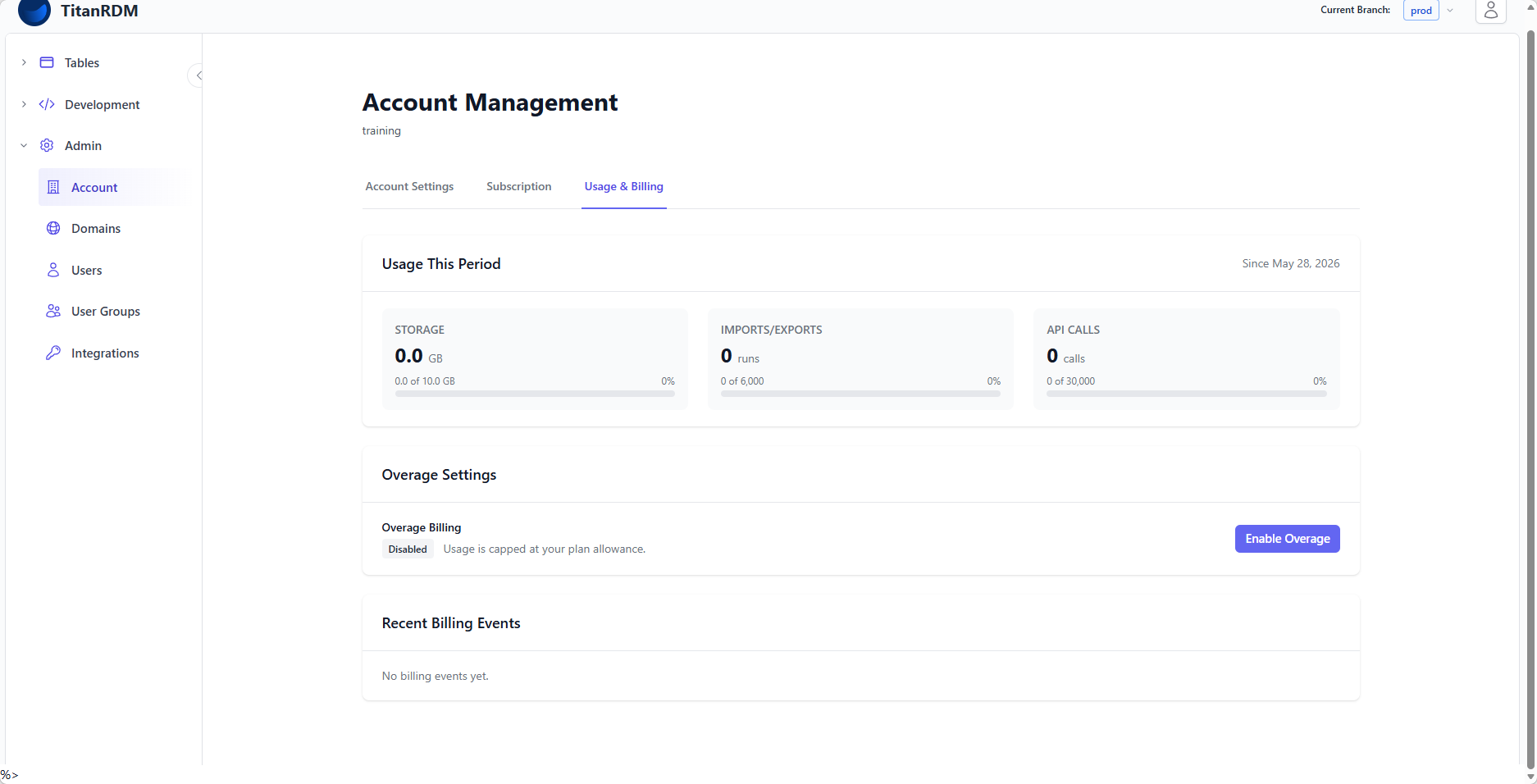
- Navigate to Admin > Account > Usage & Billing
- The Usage This Period section shows current usage against plan limits
- Each dimension displays: current value, plan allowance, and percentage used
Overage Billing
When you exceed a plan allowance, TitanRDM can either block the action or charge overage depending on your settings.
Enabling Overage
- Navigate to Admin > Account > Usage & Billing
- In the Usage section, click Toggle Overage Billing
- When enabled: exceeding plan limits incurs metered charges instead of blocking actions
Disabling Overage
You can disable overage billing at any time — unless your current usage already exceeds a plan limit. In that case, you must wait till the next billing period when usage resets below the limit before disabling overage (otherwise you would be immediately blocked).
How Overage Is Billed
Overage charges are reported to Stripe's Billing Meters and appear on your next invoice as metered usage line items. The overage rates depend on your plan tier.
Billing Status
Your account's billing status is managed automatically by Stripe webhooks:
| Status | Meaning | User Impact |
|---|---|---|
| Current | Payment is up to date | Full access |
| Past Due | A payment has failed | Full access for 7 days, then read-only mode |
| Canceled | Subscription has ended | Plan downgrades to Free at period end |
Past Due Recovery
If your payment fails:
- You receive a notification from Stripe
- You have 7 days to update your payment method
- After 7 days, the account enters read-only mode (users can view data but cannot make changes)
- Update your payment method in the billing portal to restore full access
Free Tier
The Free tier has no billing:
- 1 Developer seat, 2 End User seats (hard caps)
- Full Dev/Test/Prod branching, promotions, audit trail, and RBAC — the same core features as paid plans
- Limited usage allowances
- No Stripe subscription required
- No overage option
- No Single Sign-On (SSO)
To raise usage allowances, add more seats, or enable SSO, upgrade to a paid plan.
Related Pages
- Account Settings — organisation settings and configuration
- Plans and Tiers — detailed feature comparison
- Managing Users — how user changes affect billing