OAuth Applications
Available to: Account Administrators Minimum plan: Free
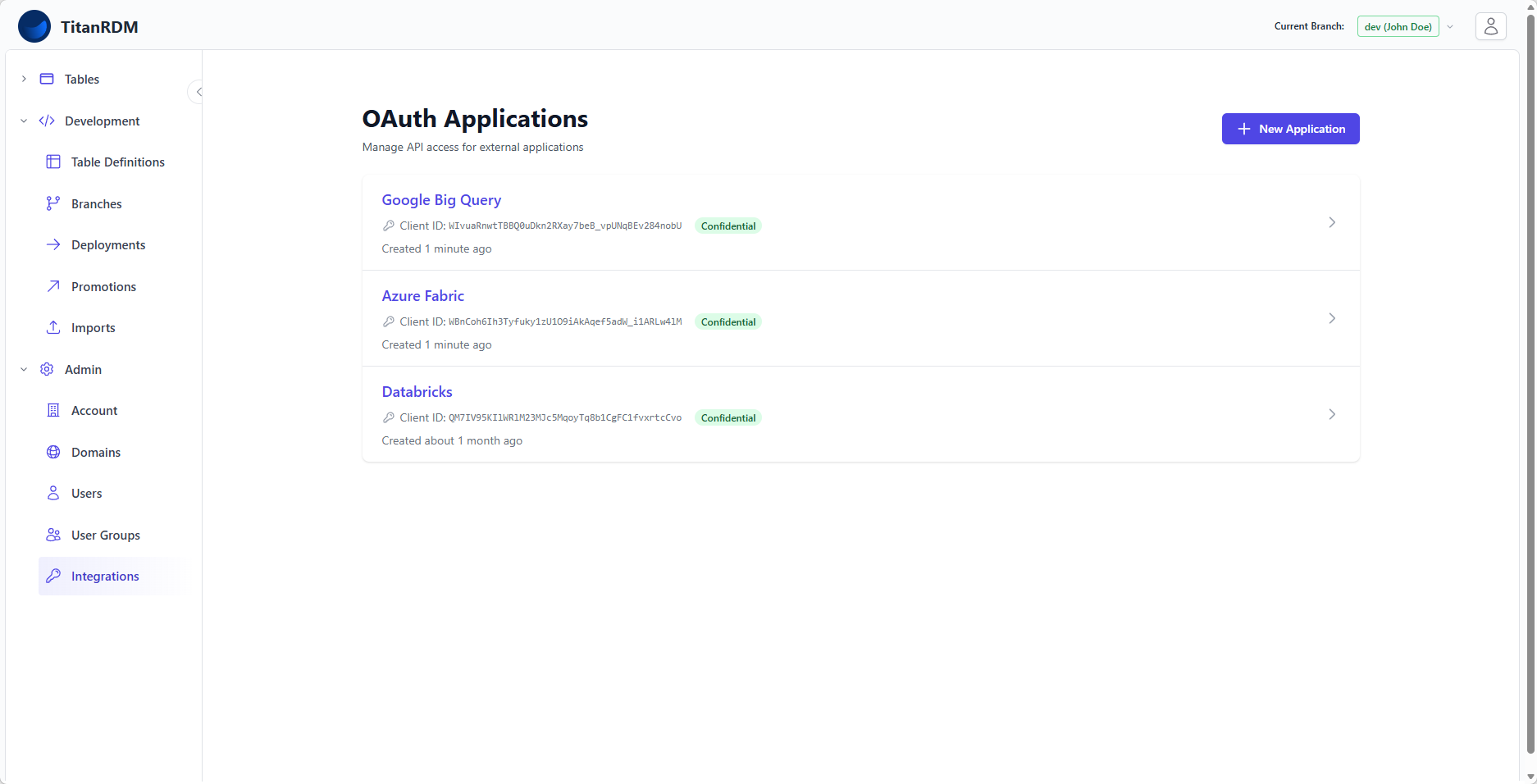
OAuth Applications are the API credentials that allow external systems to authenticate with the TitanRDM API. Each application has a Client ID and Client Secret used to obtain access tokens. This page covers creating, managing, and securing your OAuth applications.
Prerequisites
- Account Administrator group membership (only admins can manage OAuth applications)
What Is an OAuth Application?
An OAuth Application represents an external client that needs API access to your TitanRDM account. Each application has:
| Property | Description |
|---|---|
| Name | A descriptive name (e.g., "ETL Pipeline", "Data Sync Service") |
| Client ID (UID) | Public identifier used to identify the application |
| Client Secret | Private key used to authenticate the application. Shown once at creation — store it securely. |
| Redirect URI | Callback URL for Authorization Code flow. Use urn:ietf:wg:oauth:2.0:oob for testing or server-to-server flows. |
| Confidential | Whether the client can keep a secret (Yes for server-side apps, No for public clients) |
| Scopes | Which API scopes this application is allowed to request |
Viewing Applications
- Navigate to Admin > OAuth Applications
- The list shows all applications in your account, ordered by creation date (newest first)
- Each entry shows the application name
Creating an Application
- Navigate to Admin > OAuth Applications
- Click New Application
- Fill in the form:
| Field | Required | Description |
|---|---|---|
| Name | Yes | Descriptive name. Must be unique within your account. |
| Redirect URI | Yes | One or more callback URLs (one per line). For Client Credentials only: use urn:ietf:wg:oauth:2.0:oob. |
| Scopes | Yes | Select which scopes this application can request. |
- Click Create
After Creation
- The Client Secret is displayed once on the confirmation page
- Copy it immediately — it is hashed and cannot be retrieved later
- Store the secret securely (environment variables, secrets manager, etc.)
Warning: If you lose the Client Secret, you must regenerate it. This invalidates the old secret and any tokens issued with it.
Editing an Application
- Navigate to Admin > OAuth Applications
- Click the application name
- Click Edit
- Update the name, redirect URI, confidentiality, or scopes
- Click Save
Note: Changing scopes affects future tokens. Existing tokens retain their original scopes until they expire.
Regenerating the Client Secret
If a secret is compromised or you need to rotate credentials:
- Navigate to the application's detail page
- Click Regenerate Secret
- Confirm the action
- The new secret is displayed — copy it immediately
Impact of Regeneration
- The old secret is invalidated immediately
- Existing access tokens issued with the old secret continue to work until they expire
- New token requests must use the new secret
- Update your integrations with the new secret before existing tokens expire
Deleting an Application
- Navigate to the application's detail page
- Click Delete
- Confirm the deletion
Impact of Deletion
- The application is permanently removed
- All tokens issued for this application are immediately revoked
- Any systems using this application's credentials will lose access
Scope Selection
When creating an application, select the minimum scopes needed:
| Scope | When to Select |
|---|---|
| api | Full access — only for trusted internal tooling |
| api:read | Read-only integrations (monitoring, reporting, data extraction) |
| api:write | Integrations that need to create or modify data |
| api:delete | Integrations that need to delete records |
| api:admin | Administrative integrations (user management, domain creation) |
Tip: For data sync pipelines, api:read api:write is usually sufficient. Only add api:delete if the pipeline needs to soft-delete records.
Multi-Tenancy and Applications
Each OAuth Application is scoped to a single account:
- Applications can only access data within their own account
- The tenant context is automatically set when a token is used
- Cross-account access is not possible, even if a user belongs to multiple accounts
Best Practices
- One application per integration — create separate applications for each external system (ETL pipeline, monitoring tool, CI/CD) so you can revoke access independently
- Minimum scopes — only grant the scopes the integration actually needs
- Confidential clients — use confidential mode for all server-side integrations
- Rotate secrets — regenerate secrets periodically (quarterly or after team changes)
- Monitor usage — check the account usage dashboard for unexpected API call spikes
- Descriptive names — use clear names so you know which system each application represents
Troubleshooting
| Problem | Cause | Solution |
|---|---|---|
401 Unauthorized when requesting a token | Invalid Client ID or Secret | Verify credentials. Regenerate secret if needed. |
403 Insufficient scope | Token does not have the required scope | Edit the application to include the needed scope. Request a new token with the correct scope. |
| Token works but returns no data | Tenant context issue | Ensure the application belongs to the correct account. |
401 Token/user account mismatch | Authorization Code flow used with wrong app | The user's account must match the application's account. |
Related Pages
- Authentication — how to obtain and use tokens
- API Overview — general API concepts
- API Quick Start — hands-on tutorial
- Account Settings — account configuration