Promotions
Available to: Developers, Admins Minimum plan: Free (all plans include branching and promotions)
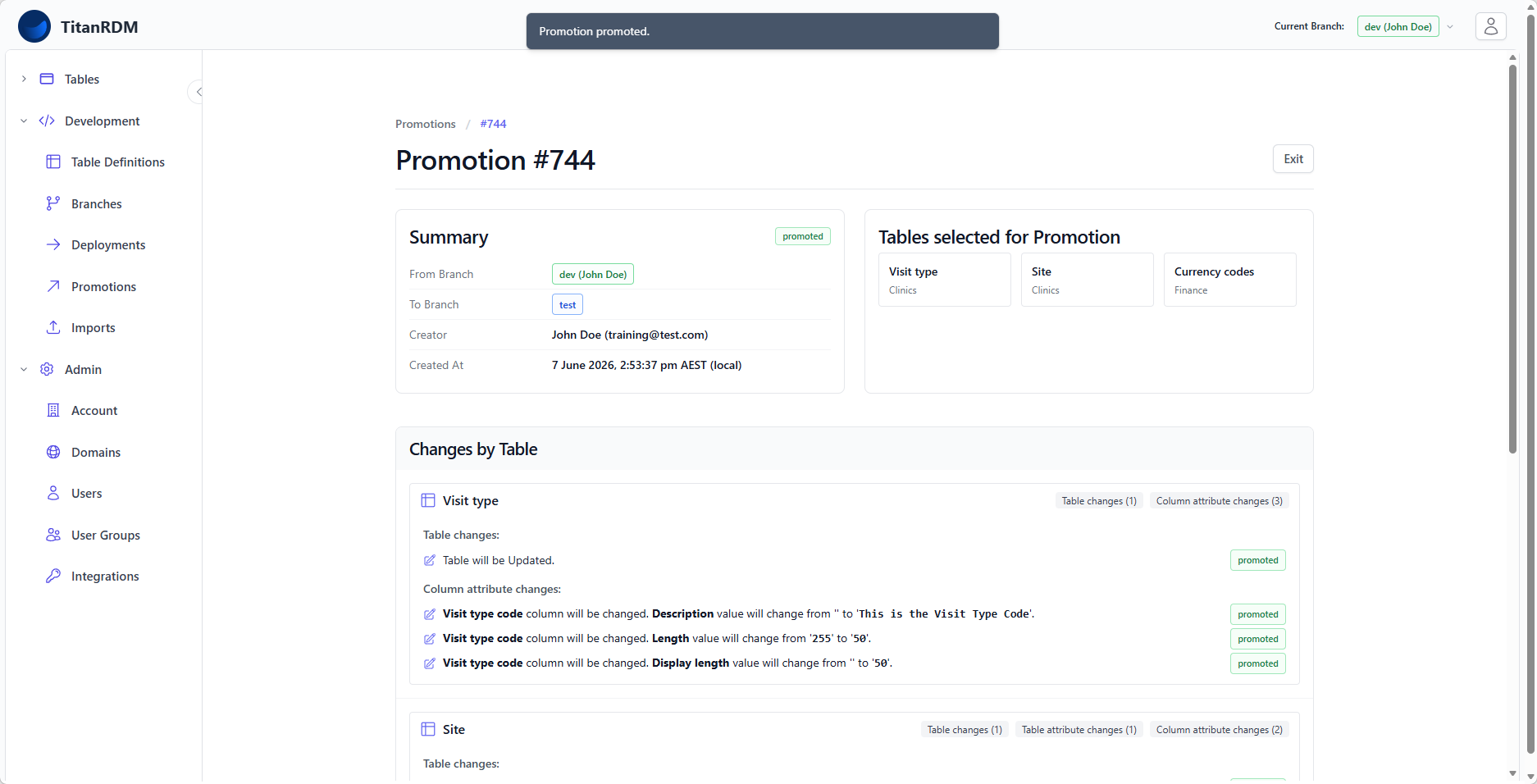
A promotion moves table definition changes from one branch to another — typically from Development to Test, or from Test to Production. Promotions include a diff review and an approval workflow, ensuring that structural changes are reviewed before they reach higher environments.
Why Promote?
Promotions are the mechanism that moves changes through your environments in a controlled way. They provide:
- Visibility — every change is diffed and displayed for review before it moves
- Accountability — promotions record who requested, who approved, and when
- Safety — an approver on the target branch must sign off before changes are applied
- Auditability — a full action history is maintained for each promotion
- Seperation - Separates the responsibility of making changes from the responsibility of approving them
Without promotions, you would need to manually recreate table definitions on each branch — error-prone and unauditable.
The Promotion Lifecycle
A promotion moves through these statuses:
Created → Requested → Promoted or...
                       ├── Rejected
                       ├── Cancelled
                       ├── Failed → (Retry)
                       └── Abandoned
| Status | Meaning |
|---|---|
| Created | The promotion has been prepared with a list of table definitions to move. |
| Requested | A notification has been sent to approvers on the target branch. |
| Promoted | The table definitions have been copied to the target branch. |
| Rejected | An approver reviewed and rejected the promotion. |
| Cancelled | The creator cancelled the promotion before it was approved. |
| Failed | An error occurred during the promotion. Can be retried. |
| Abandoned | The promotion was discarded. |
Creating a Promotion
- Use the Current Branch selector to switch to the branch where you want to promote from
- Navigate to Development > Promotions
- Click New Promotion
- Choose the table definitions to include in the promotion
- Click Create Promotion
TitanRDM builds a diff comparing each selected table definition on the source branch against its counterpart (if any) on the target branch.
The Diff Review
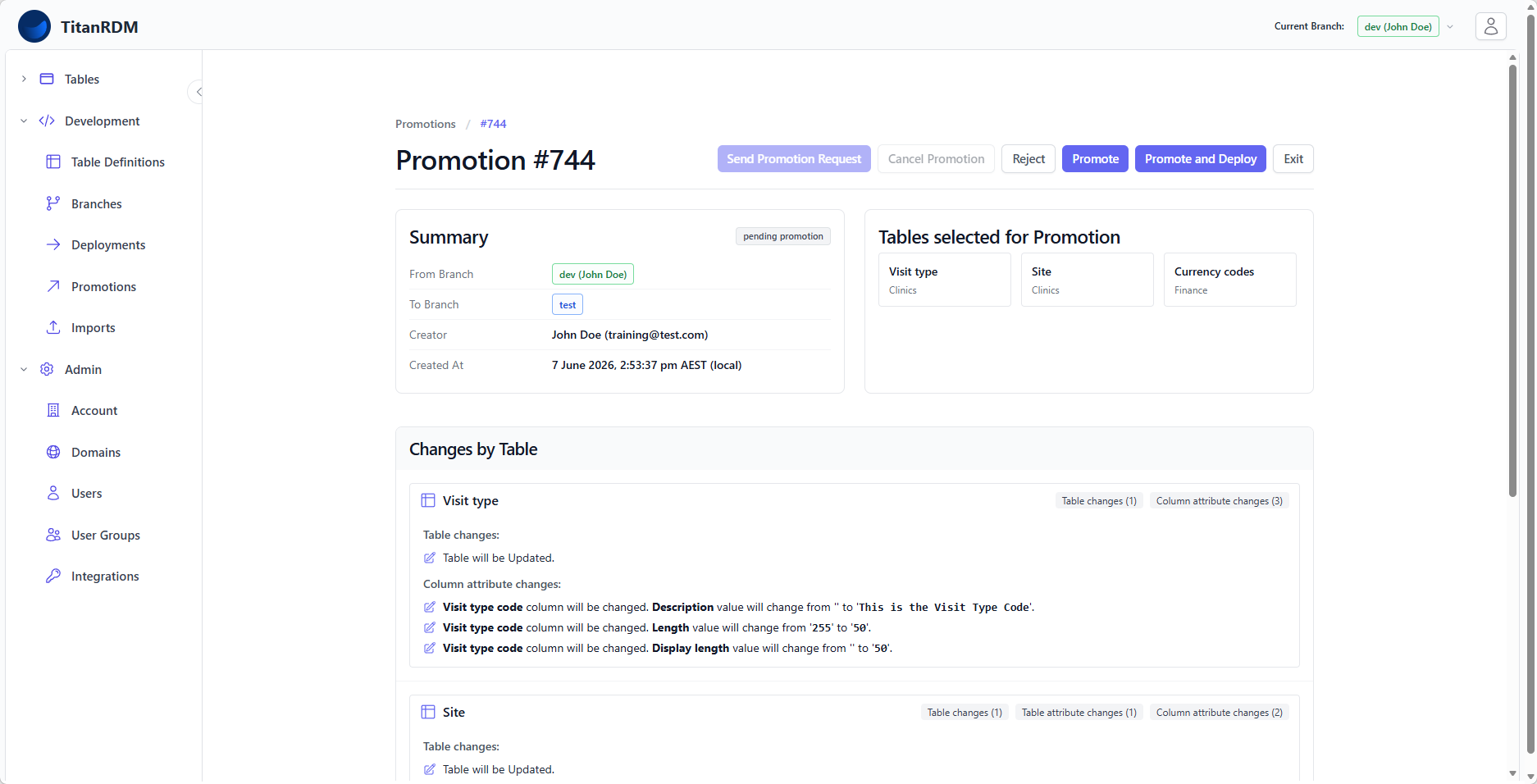
The promotion detail page shows a comprehensive diff, organised by table definition. For each table, you see:
| Diff Level | What It Shows |
|---|---|
| Table changes | Whether the table is being created, updated, or deleted on the target branch |
| Table attribute changes | Changes to table properties (name, database table name, domain, description, load type, etc.) |
| Column changes | Columns being added, modified, or removed |
| Column attribute changes | Changes to column properties (name, data type, primary key, foreign key, length, scale, etc.) |
| Import mapping changes | Changes to import definitions and column mappings associated with the table |
Each change shows old and new values side by side.
Approval Actions
Once a promotion is created, it can be acted on by users with the appropriate permissions. The available actions are:
Approve
Copies the table definitions from the source branch to the target branch. The definitions are now on the target branch but are not yet deployed — a separate deployment step is needed to apply them to the physical database. This is only enabled if the current user has branch approver permissions on the target branch.
Approve and Deploy
Copies the table definitions and immediately creates and executes a deployment on the target branch. This is a convenience action that combines two steps into one. This is only enabled if the current user has branch approver permissions on the target branch.
Send Promotion Request
If the current user does not have branch approver permissions on the target branch, this action is enabled. It will send a promotion request to the branch's approvers.
Reject
Marks the promotion as rejected. The creator is notified. The table definitions remain unchanged on the target branch.
Abandon
Discards the promotion entirely. This is typically done by the creator when the changes are no longer needed.
Who Can Approve?
Promotion approval requires the Branch Approver permission on the target branch. This is granted via the auto-created "Branch [Name] Approver" user group.
| Action | Who Can Do It |
|---|---|
| Create a promotion | Branch editors and developers on the source branch |
| Approve / Approve+Deploy / Cascading Deploy | Branch approvers on the target branch, or Account Administrators |
| Reject | Branch approvers on the target branch, or Account Administrators |
| Abandon | Branch editors and developers on the source branch, or Account Administrators |
Tip: If the creator of the promotion is also an approver on the target branch, the promotion can be immediately approved without waiting for someone else. TitanRDM skips the "requested" notification in this case.
Typical Promotion Workflows
Standard Workflow (Business/Enterprise)
Developer makes changes on Development
  → Promote Dev → Test (approver reviews and approves)
    → Deploy on Test
      → Test and validate
        → Promote Test → Production (approver reviews and approves)
          → Deploy on Production
What Gets Promoted
A promotion copies the following from the source branch to the target branch:
- Table definitions — the table metadata (name, domain, load type, description, etc.)
- Column definitions — all columns with their types, constraints, and properties
- Import mappings — reusable import definitions and their column mappings
The promotion does not copy: - Data — row data in the physical tables is not moved between branches - Deployed state — the target branch's physical tables are not changed until you deploy
This is an important distinction: promotion moves definitions, not data. After promoting, you still need to deploy on the target branch to update the physical tables.
Related Pages
- Deployments — applying promoted definitions to the physical database
- Branches — the environments between which you promote
- Table Definitions — what gets promoted
- Permissions — how approver permissions work
- Plans and Tiers — which plans support promotions