Branches
Available to: Developers, Admins Minimum plan: Free (all plans include Dev/Test/Prod branching)
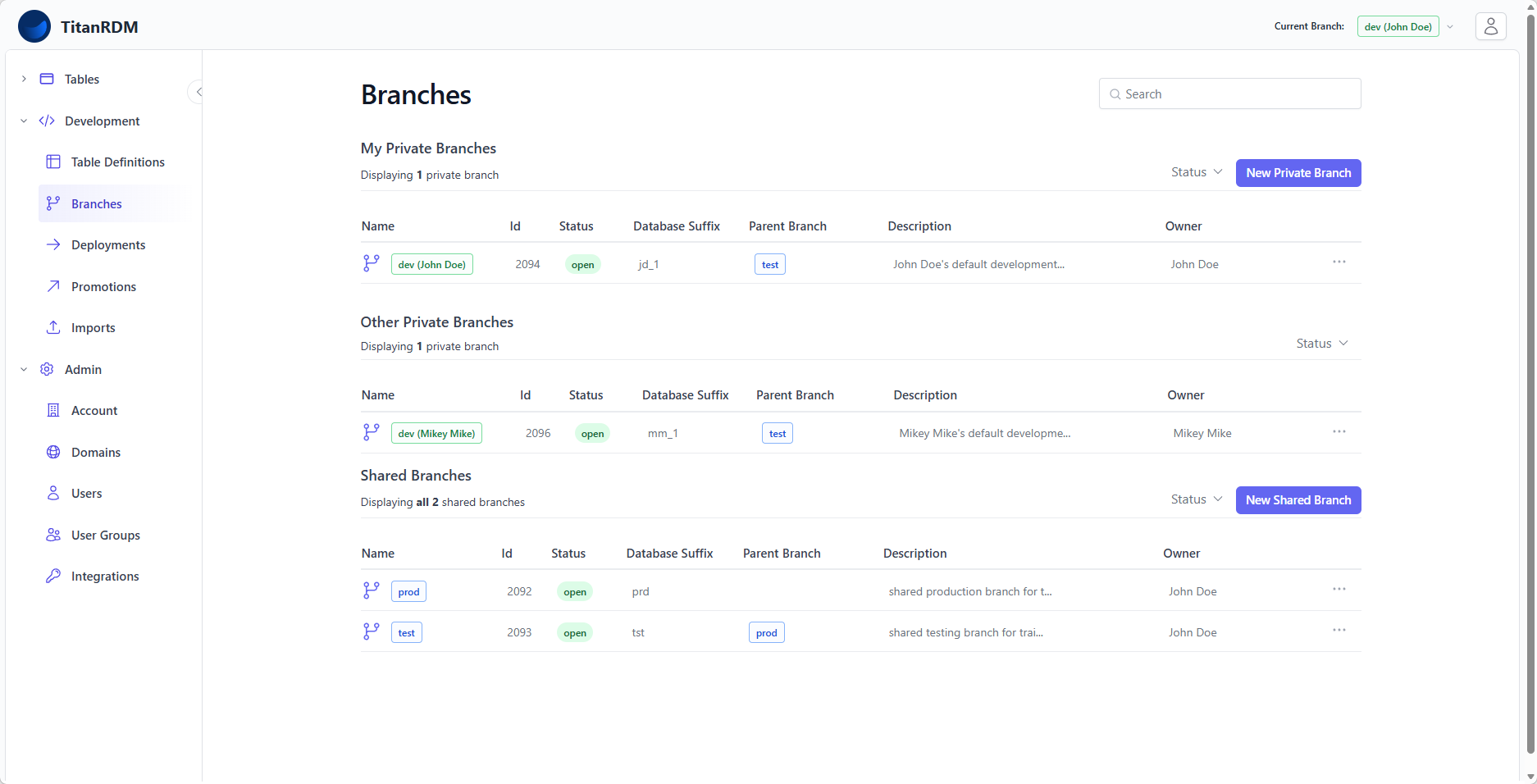
TitanRDM uses a branching model to manage changes to your reference data structures safely. Branches let you make and test changes in isolation before applying them to production — similar to branches in Git, but designed for data management rather than source code.
Why Branches?
Without branches, every change to a table definition takes effect immediately in production. This is fine for small teams on simple plans, but risky as your organisation grows:
- A column rename could break a downstream report
- An accidental deletion could remove critical reference data
- Ability to test changes in isolation before making public
Branches solve this by giving each environment and each developer an isolated workspace where changes can be made, reviewed, and tested before reaching production.
Branch Types
TitanRDM has two categories of branches:
Shared Branches (Permanent Environments)
Shared branches are long-lived environments that represent stages in your change lifecycle. They are created automatically during account activation and cannot be deleted.
| Branch | Purpose | Typical Use |
|---|---|---|
Production (prod) | The live environment. Data accessed by end users and downstream systems comes from here. | Final, approved reference data |
Test (test) | Pre-production validation. Changes are promoted here for testing before going to Production. | UAT, integration testing |
Development (dev) | The shared development environment where changes are first prepared before promotion to Test. | Day-to-day development |
Note: All plans — Free, Plus, Business, and Enterprise — include the full set of Production, Test, and Development branches, created automatically during account activation.
Private Branches (Feature Branches)
Recommendation: We recommend using the default developer's private branch created for each developer at developer creation time for all individuals' work. Because of the "Cherry-Pick" nature of the promotion process, it is easier to use one branch and continue working on it, even if you are making distinct changes that are promoted at different times. Note, through user group permissions, multiple developers can also share the same private branch. The only time it may make sense for a developer to have multiple private branches is if they are working on completely unrelated features that perhaps require a different parent branch and promotion path. E.g., for a given migration project vs normal domain-based reference data.
Private branches are developer-owned workspaces for making changes in isolation. They are created automatically for each developer. It's also possible to create additional private branches for specific purposes.
- Each private branch has a parent branch (typically Test)
- Changes on a private branch are invisible to other developers
- When ready, the developer promotes changes from the private branch to its parent
- The branch owner is the user who created it, or a designated developer at the time of developer creation
- Changes to table definitions are made in private branches on all plans. This follows software development best practices by isolating structural changes.
Private branches are useful when: - Multiple developers are working on different table changes simultaneously - You want to prototype a structural change without affecting the shared Test branch - A change requires review before merging into Test
Branch Hierarchy
Branches form a parent-child hierarchy. The standard hierarchy for a Business/Enterprise account is:
Production
  └── Test
      ├── private branch  (developer 1)
      └── private branch  (developer 2)
Changes flow upward through promotion:
Private Branch → Test → Production
Each promotion moves table definition changes from one branch to its parent, with a review and approval step at each level.
Branch Properties
| Property | Description |
|---|---|
| Name | A descriptive name. Must be unique among open shared branches within your account. |
| Branch Type | shared (permanent environments) or private (feature branches). |
| Database Suffix | A short code (e.g., prod, test, dev, feat) used to name the database schema for this branch. Max 4 characters, must be unique. Cannot be stg (reserved for import staging). |
| Parent Branch | The branch this one was created from. Changes promote from child to parent. |
| Status | open (active) or closed (archived/merged). |
| Owner | For private branches, the user who created it, or a designated developer at the time of developer creation. |
| Integration Branch | A special flag — at most one branch per account can be the integration branch. This is the branch where changes from private branches are merged. |
Working with Branches
Switching Branches
Your current branch determines which table definitions you see and which deployed tables are available in the sidebar. To switch, click the branch name badge in the top-right header area of the dashboard and select the branch you want.
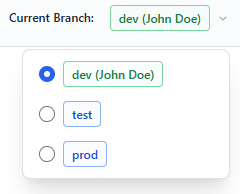
When you switch branches: - The Tables sidebar updates to show tables deployed on the new branch - Table Definitions shows definitions on the new branch - Deployments and Promotions filter to the new branch
Creating a Private Branch
- Navigate to Development > Branches
- Click New Branch
- Fill in:
- Name — e.g.,
feature-add-currency-tables - Parent Branch — typically Test
- Database Suffix — a short unique code, e.g.,
curr - Description — optional context
- Name — e.g.,
- Click Create Branch
TitanRDM will: - Create a database schema for the new branch - Create default user groups (Editor, Approver, Developer) for the branch - Add you to the branch's user groups
Closing a Branch
Recommendation: We recommend keeping each developer's private branch open. Because of the "Cherry-Pick" nature of the promotion process, it is easier to keep the branch open and continue working on it, even if you are working on distinct changes.
Closing a branch marks it as archived without removing it or its database schema. The branch record, its history, and its promotions are all preserved. A closed branch can be reopened at any time by editing it and setting its status back to open.
To close a branch:
- Navigate to the branch's detail page
- Click Edit
- Set Status to
Closed - Click Save
Deleting a Branch
Recommendation: We recommend keeping each developer's private branch open. Because of the "Cherry-Pick" nature of the promotion process, it is easier to keep the branch open and continue working on it, even if you are working on distinct changes.
Deleting a branch is permanent and destructive. The branch record is removed from the database and cannot be recovered.
When a branch is deleted: - The branch's database schema is dropped (all tables and data on that branch are permanently lost) - The branch's user groups and permissions are removed - The branch record and its associations are permanently deleted
To delete a branch:
- Navigate to the branch's detail page
- Click Delete
- Confirm the deletion
Warning: Deleting a branch is irreversible. All data in the branch's database schema will be permanently lost. We recommend closing a branch rather than deleting it unless you are certain you no longer need it.
You cannot delete a branch that has open child branches. Close or re-parent those child branches first.
Branch Permissions
Each branch has three auto-created user groups:
| User Group | Permission | What It Grants |
|---|---|---|
| Branch [Name] Editor | edit | Branch membership for End Users; grants no development actions |
| Branch [Name] Approver | approve | Can approve promotions targeting this branch |
| Branch [Name] Developer | develop | Can create and manage table definitions on this branch |
To work on a branch, a developer needs the develop permission on the branch and a matching domain permission. Account administrators bypass these checks.
Database Isolation
Each branch has its own database schema within your account's dedicated database. This means:
- Tables deployed on a Development branch are physically separate from tables on Production
- Data entered on one branch does not appear on another
- You can make structural changes (add/remove columns, change types) on Development without affecting Production
The schema is named after the branch's database suffix (e.g., dev, test, prod).
Related Pages
- Deploying Changes — how to apply table definition changes on a branch
- Promoting Changes — how to move changes between branches
- Permissions — how branch and domain permissions interact
- Plans and Tiers — plan features and allowances