Exporting Data
Available to: All users (with permission on the domain) Minimum plan: Free
TitanRDM lets you export reference data from any deployed table to a CSV file. Exports can be triggered through the UI or programmatically via the API/SDK. Two export patterns are available: full (all records) and incremental (only records changed since a given timestamp).
Note: Only Full export is currently available. Incremental export is a future feature.
Export Patterns
| Pattern | What It Exports | Use Case |
|---|---|---|
| Full | All non-deleted records in the table. | One-off downloads, initial loads for downstream systems, backups. |
| Incremental | Only records created, updated, or deleted since the high water mark timestamp. Includes a transaction code column (i = insert, u = update, d = delete). | Ongoing synchronisation with downstream systems, change data capture pipelines. |
Exporting via the UI
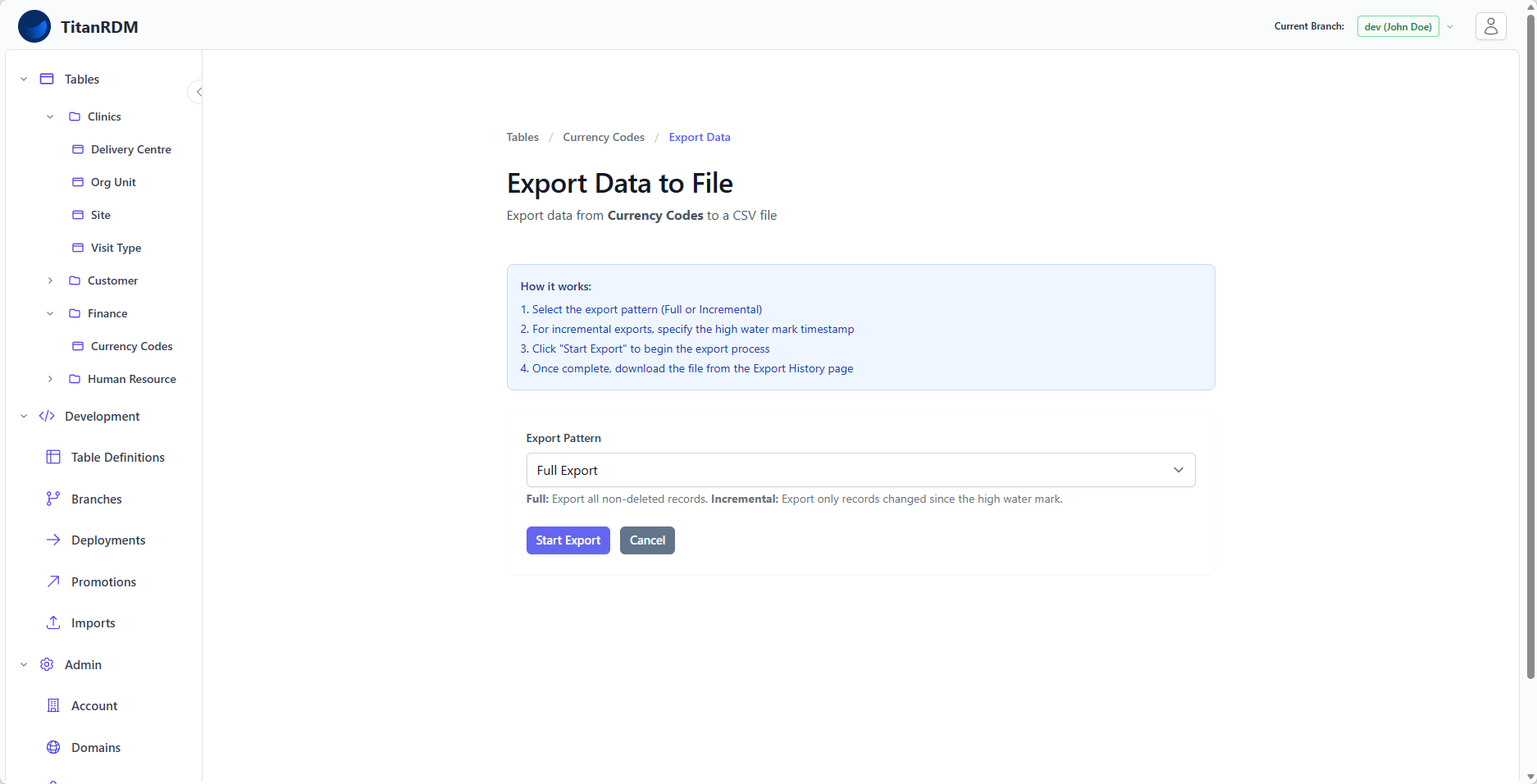
Step 1: Navigate to the Export Page
From the data grid for your table:
- Click the Export Data button in the header bar
Step 2: Select the Export Pattern
- Choose Full Export or Incremental Export from the dropdown
Step 3: Set the High Water Mark (Incremental Only)
If you selected Incremental Export:
- A date-time picker appears
- Enter the timestamp from which you want changes — only records with
trdm_updated_atafter this timestamp will be included - Deleted records (those with
trdm_is_deleted = trueand updated after the high water mark) are included with adtransaction code
Tip: Use the completion timestamp of your last export as the high water mark to capture all changes since then.
Step 4: Start the Export
- Click Start Export
- The export job is queued and begins processing in the background
- A success message appears with a link to the Export History page

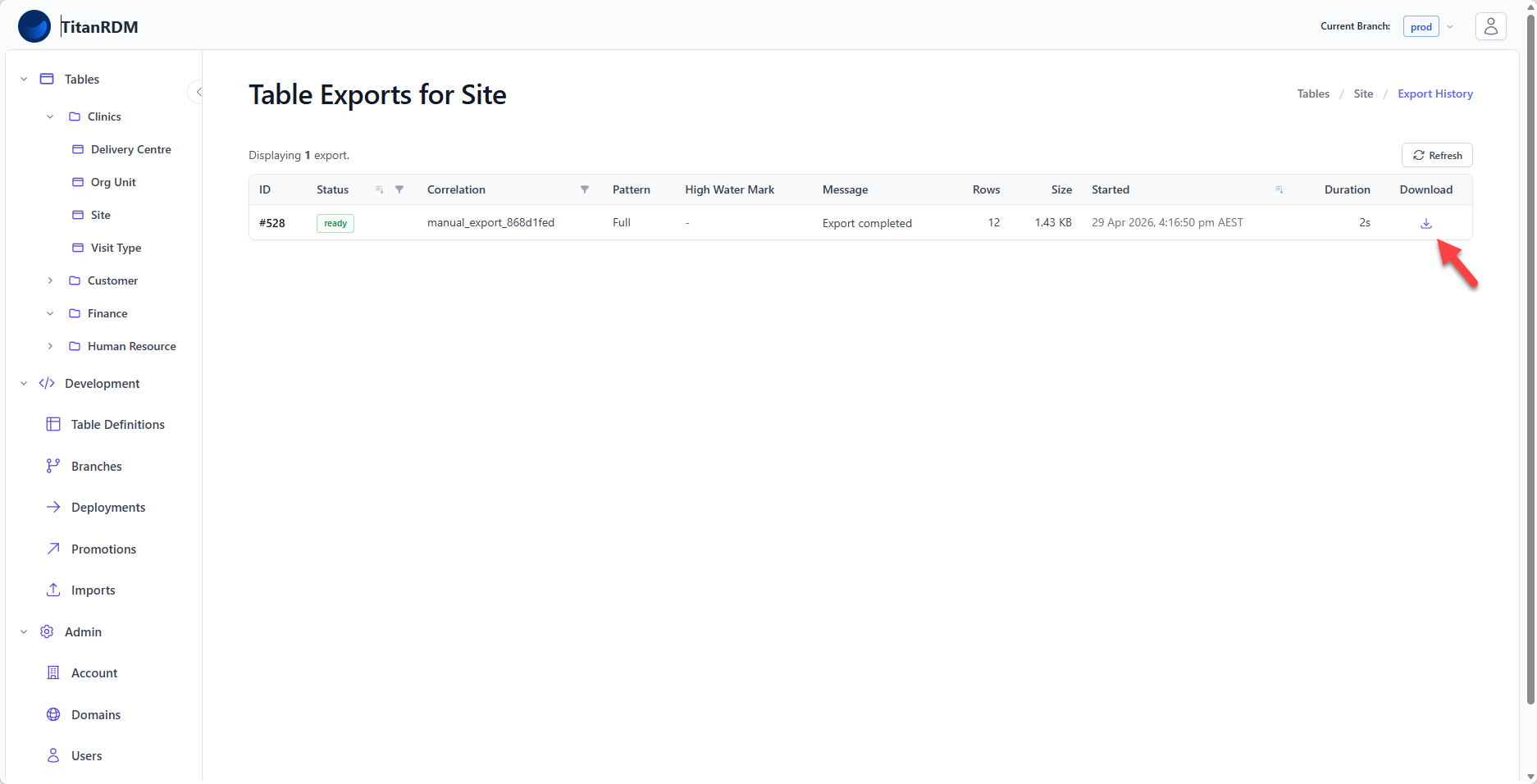
Step 5: Download the File
- Navigate to the Export History page (from the success message link, or via the table header breadcrumb)
- Wait for the export status to change to Ready
- Click the Download link to save the CSV file
Export History
From any table's data grid, click Export History in the breadcrumb to see all exports for that table.
The export history list shows:
| Column | Description |
|---|---|
| Status | Current status with a colour-coded badge |
| Pattern | Full or Incremental |
| Correlation Code | Identifier linking related exports (auto-generated for UI exports, custom for API exports) |
| Started | When the export job began |
| Ready | When the export generation finished |
| Download | Link to download the CSV file (appears when ready) |
The list supports filtering by status and correlation code, and sorting by status, created date, started date, or completed date.
Export Statuses
| Status | Meaning |
|---|---|
| Started | The export job has been queued and is running. |
| Ready | The CSV file has been generated and is ready for download. |
| Failed | An error occurred during export generation. |
Exported File Format
Exports produce a CSV file with:
- A header row containing column names
- One row per record
- All user-defined columns from the table definition
- System columns:
trdm_sk,trdm_created_at,trdm_updated_at,trdm_updated_by,trdm_is_deleted - For incremental exports: an additional
trdm_transaction_codecolumn (i,u, ord)
Correlation Codes
Every export has a correlation code — a unique identifier for tracking. For UI-initiated exports, this is auto-generated (e.g., manual_export_a1b2c3d4). For SDK/API-initiated exports, you supply your own code, which is useful for tracing exports through your data pipeline.
Usage and Limits
Exports initiated via the SDK/API and UI count towards your plan's SDK Import/Export runs allowance. Export files are only temporary and don't consume storage.
| Plan | SDK Import/Export Runs |
|---|---|
| Free | 100/month |
| Plus | 3,000/month |
| Business | 9,000/month |
| Enterprise | Custom |
See Plans and Tiers for details on limits and overage billing.
SDK/API Exports
For programmatic exports, TitanRDM provides REST API endpoints to:
- Trigger an export — specify the table, branch, pattern, and (for incremental) high water mark
- Poll for status — check when the export has completed
- Download the file — retrieve the generated CSV via a presigned URL
This is covered in detail in SDK Imports and Exports.
Related Pages
- Viewing Data — browse data before exporting
- Importing Data — the reverse operation — loading data into tables
- Plans and Tiers — export usage limits by plan
- SDK Imports and Exports — programmatic export via the API