Cloning Tables
Available to: Developers, Admins Minimum plan: Free (all plans include multiple branches)
Cloning copies a table definition — including all its column definitions and import mappings — from a higher branch to a lower branch. In GIT you would create a new feature branch that has all code from the main branch. IN TitanRDM you effectively cherry pick the table definition you want to change into your private dev branch. Note, tables can only be changed in a Private Dev branch. They can't be changed directly in a Shared branch (i.e. Test, Production).
Prerequisites
- Developer permission on the source table's domain
- Edit permission on the target branch
- The target branch must be open
- The target branch must exist in the promotion path of the higher branch.
- Any plan — all plans include multiple branches
Cloning a Single Table
- Navigate to Development > Table Definitions
- Find the table definition you want to clone
- Click on the table to open its detail page
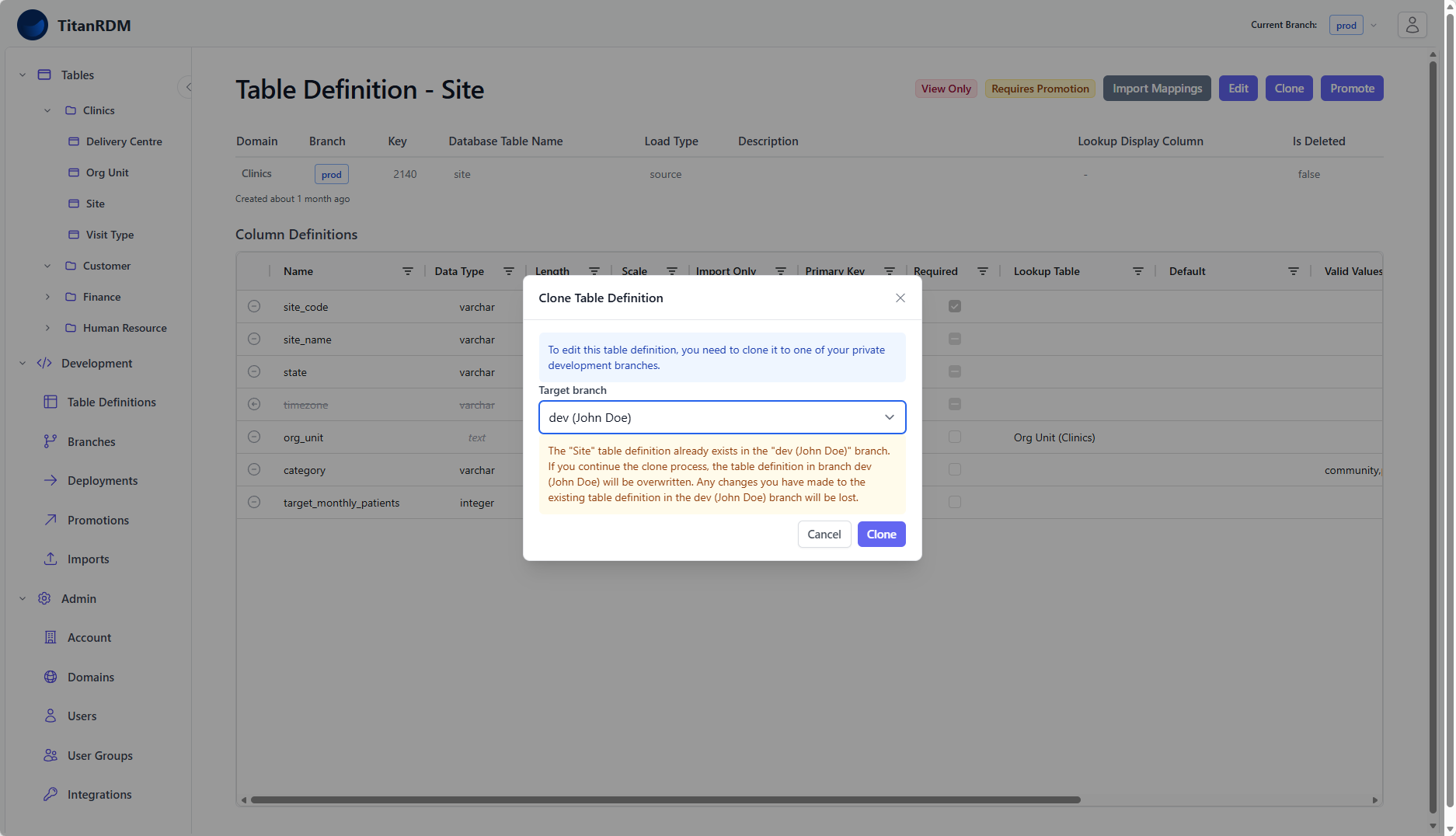
- Click Clone in the toolbar
- In the clone dialog:
- Select the target branch from the dropdown (lists your private branches)
- Branches where a copy already exists are indicated
- Click Clone
TitanRDM creates a complete copy of the table definition on the target branch, including:
- All column definitions (names, types, constraints, order)
- Import mappings and their column mappings
- Lookup display column setting
The cloned definition appears as requiring deployment on the target branch.
Bulk Cloning
To clone multiple table definitions at once:
- Navigate to Development > Table Definitions
- Select multiple tables using the checkboxes
- Click Clone in the toolbar
- Select the target branch
- Click Clone
Dependency Ordering
When bulk cloning, TitanRDM automatically orders the tables by foreign key dependencies. If Table A references Table B, Table B is cloned first. This ensures foreign key references are correctly wired on the target branch.
External Reference Validation
Before bulk cloning proceeds, TitanRDM validates that all referenced tables (via foreign keys) either:
- Are included in the current bulk clone selection, or
- Already exist on the target branch (matched by key)
If a referenced table is missing from both the selection and the target branch, the clone is blocked with an error message explaining which table needs to be cloned first.
What Gets Cloned
| Included | Not Included |
|---|---|
| Table definition properties (name, domain, database table name, load type, description) | Row data in the physical table |
| All column definitions (including deleted ones) | Deployment history |
| Import mappings and column mappings | Promotion history |
| Lookup display column reference | Physical table (must be deployed separately) |
| Foreign key references (re-pointed to target branch equivalents) |
Foreign Key Handling
When a table is cloned, foreign key references in column definitions are re-pointed to the equivalent table on the target branch:
- TitanRDM finds the source table's FK reference (e.g., column
country_codereferencesCountry Codestable on the source branch) - It looks for a table with the same key on the target branch
- If found, the cloned column's FK is pointed to the target branch's copy
- If not found, the FK reference is cleared to avoid dangling cross-branch references
This is why dependency ordering and reference validation matter — clone referenced tables before tables that depend on them.
Clone Validation
TitanRDM performs additional validation before cloning:
Unpromoted Changes Check
If the table you are cloning from a shared branch (e.g., Development) has unpromoted changes on a downstream branch (e.g., Test has changes that haven't been promoted to Production yet), TitanRDM warns you. This prevents you from accidentally cloning an older version when a newer version exists further down the branch hierarchy.
The warning message directs you to clone from the branch that has the most recent changes.
Clone vs Promote
| Clone | Promote | |
|---|---|---|
| Direction | Parent branch to Child branch (downward only) | Child branch to parent branch (upward only) |
| Approval | No approval required | Requires approver on target branch |
| Diff review | No diff shown | Full diff review |
| Audit trail | CloneAction record created | Full promotion lifecycle with actions |
| Use case | Bringing definitions into a private development branch for development | Moving tested changes through environments toward production |
When to Clone
- Copying a table definition from a shared branch (Dev/Test/Prod) into your private feature branch to work on it
- Bringing a reference table into a new branch so that FK dependencies are satisfied
When to Promote
- Moving changes through the standard development lifecycle (Dev → Test → Prod)
After Cloning
After a table definition is cloned to the target branch:
- Switch to the target branch
- The cloned table appears in Table Definitions with a "Needs Deploy" badge
- Make any additional modifications if needed
- Deploy to create or update the physical table on the target branch
Related Pages
- Creating Tables — creating new table definitions from scratch
- Branches — understanding the branch model
- Deployments — deploying cloned definitions
- Promotions — the formal promotion workflow
- Foreign Keys — how FK references work across branches