Editing Data
Available to: All users (with Data Manager permission on the domain) Minimum plan: Free
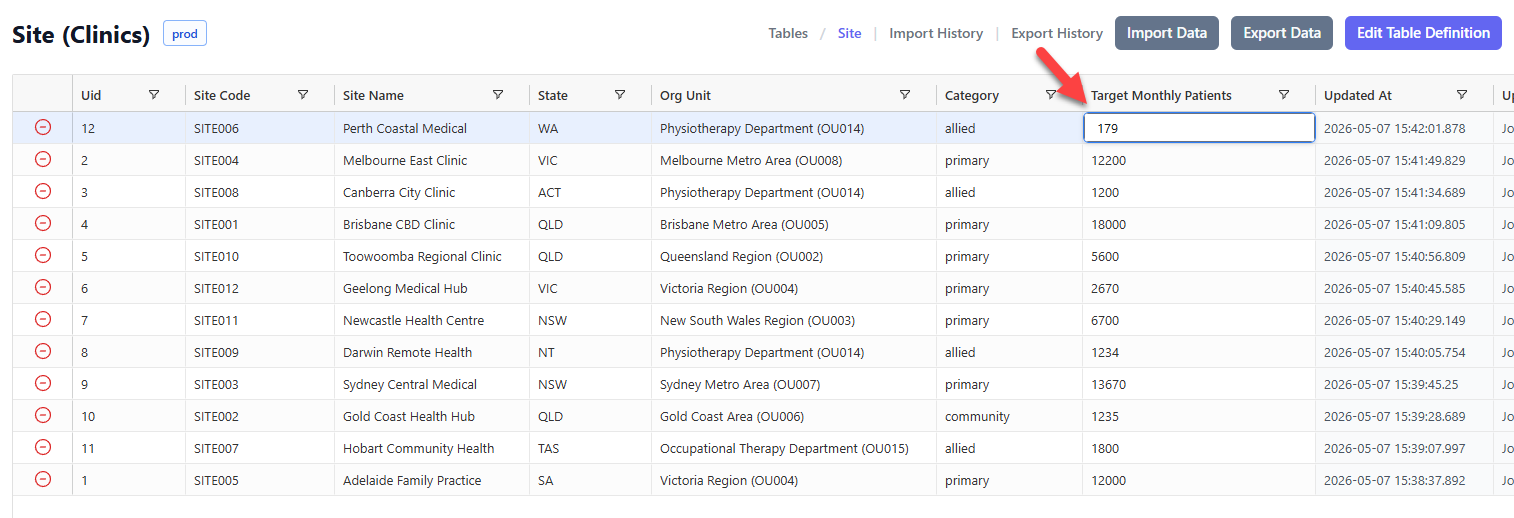
TitanRDM's data grid supports inline editing — click any cell to change its value, add new rows, or delete existing ones. Changes are saved immediately to the database.
Prerequisites
To edit data in a table, you need:
- Data Manager permission on the table's domain (granted via the "Domain [Name] Data Manager" user group), or on the Table Definition itself, or Account Administrator access
- The table must be deployed on your current branch
Inline Cell Editing
- Click any data cell in the grid
- The cell becomes editable — type a new value
- Press Enter or Tab to save and move to the next cell
- Press Escape to cancel the edit and revert to the original value
Changes are saved to the database immediately when you leave the cell. If a validation error occurs (e.g., a required field is blank, or a value does not match the valid values list), an error message appears and the cell reverts.
Editing Behaviour by Data Type
Different column data types present specialised editors:
| Data Type | Editor | Behaviour |
|---|---|---|
| varchar, character, text | Text input | Free-text entry. Length is enforced if defined on the column. |
| integer, smallint, bigint | Number input | Accepts whole numbers only. |
| decimal, real, double | Number input | Accepts decimal numbers. Scale is enforced if defined. |
| boolean | Checkbox | Click to toggle between true and false. |
| date | Date picker | Native browser date picker (YYYY-MM-DD). |
| time, timetz | Time picker | Native browser time picker (HH:mm or HH:mm:ss). |
| timestamp, timestamptz | DateTime picker | Native browser datetime-local picker (YYYY-MM-DDTHH:mm). |
Valid Values
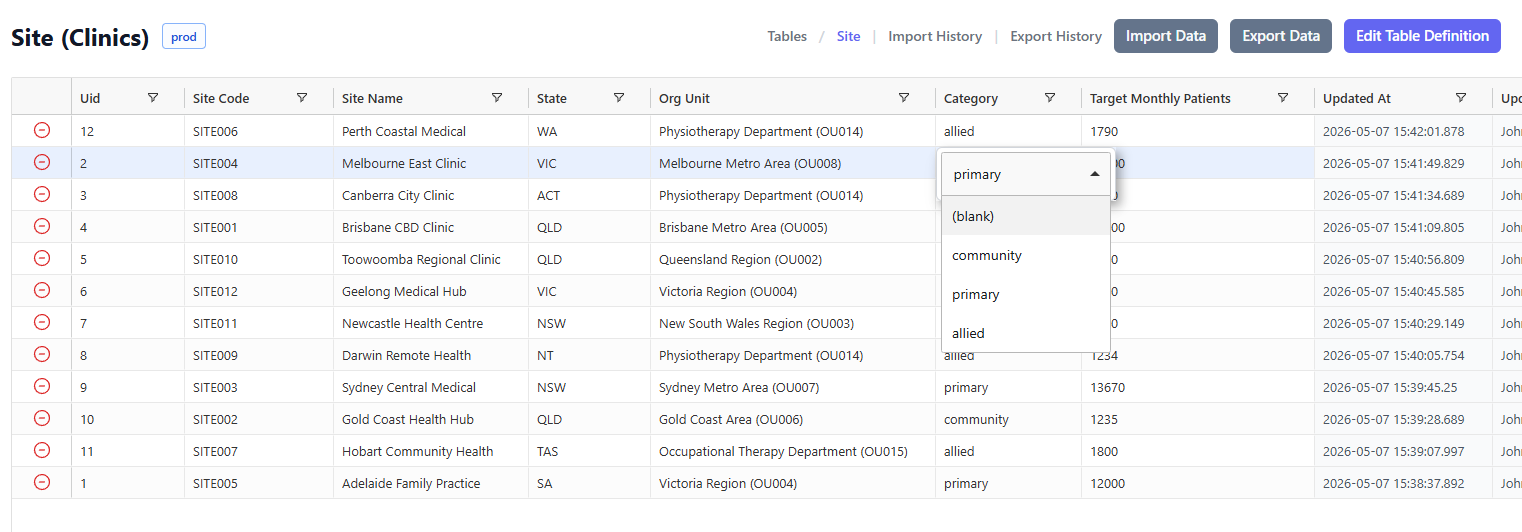
If a column has valid values defined (a comma-separated list set on the column definition), the cell editor displays a dropdown with only those values. You must select one of the allowed values — free-text entry is not permitted.
Foreign Key Lookups
If a column is defined as a foreign key, the cell editor displays a lookup dropdown showing values from the referenced table. The dropdown shows the referenced table's lookup display column value alongside the key value, making it easy to select the correct reference.
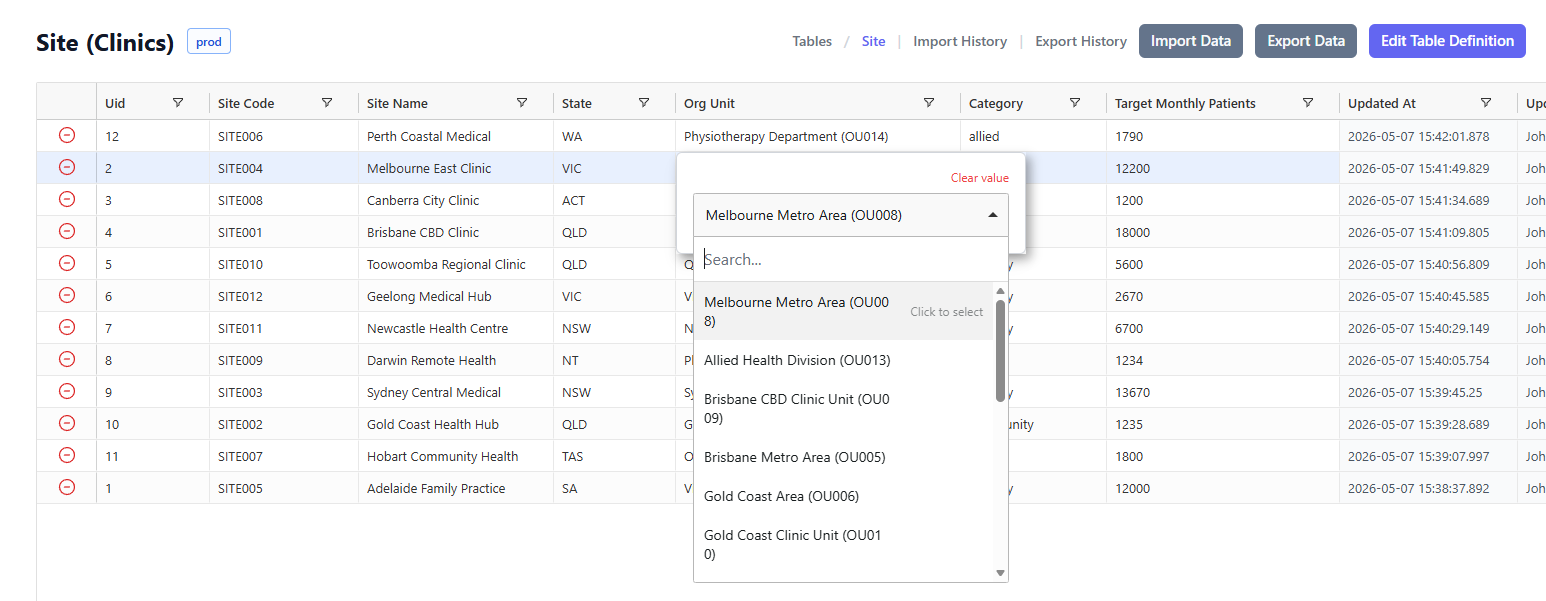
Tip: The lookup display column is configurable on the referenced table's definition. By default, it uses the first string column.
Adding Rows
New rows can be added in two ways, depending on the if the table allow new rows to be added manually is enabled:
Allow new rows to be added manually is enabled
- The top row of the grid is reserved for adding new rows
- Fill in the values for each column
- The row is saved when you click the + button
You can add multiple rows in succession.
Allow new rows to be added manually is disabled
If "Allow new rows to be added manually" is disabled, the reserved row for adding new rows is visible but cannot be used. New rows can only enter the table through file imports (manual upload or SDK/API). You can still edit existing rows — for example, to update mapping or categorisation columns.
Deleting Rows
To delete one or more rows:
- Click the - button in first column of the row(s) you want to delete
- A confirmation dialog asking of you want to delete the row(s) will appear
- Click Continue to confirm
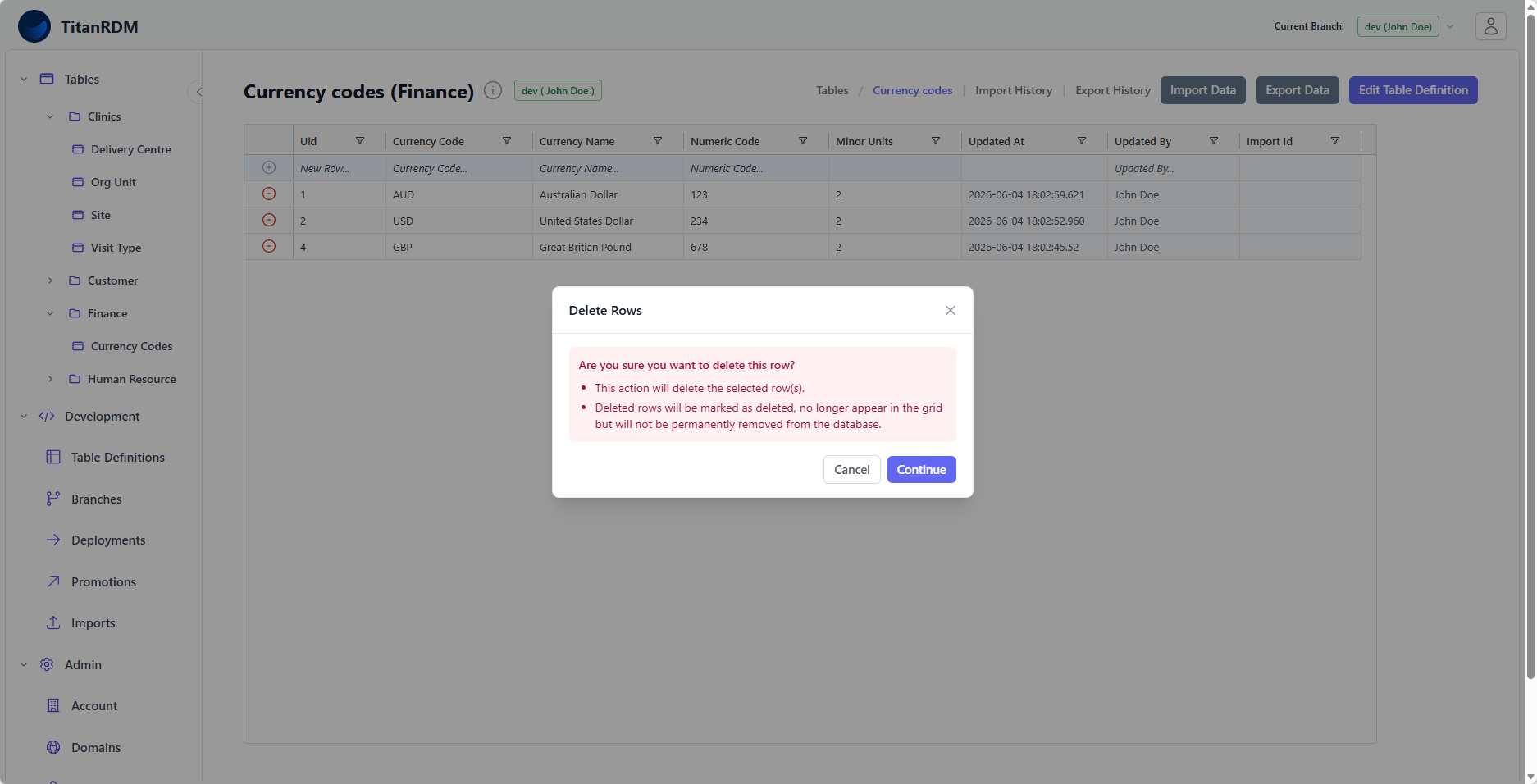
Note: Deleted rows are soft-deleted — they are marked with trdm_is_deleted = true and no longer appear in the grid, but are not permanently removed from the database.
System Columns
Every table has system-managed columns that you cannot edit directly:
| Column | Purpose |
|---|---|
trdm_sk | Auto-generated surrogate key. Uniquely identifies each row. |
trdm_created_at | Timestamp when the row was first created. |
trdm_updated_at | Timestamp of the most recent edit. |
trdm_updated_by | Email of the user who last modified the row. |
trdm_is_deleted | Soft-delete flag. Deleted rows have this set to true. |
These columns are managed automatically by TitanRDM. Only trdm_updated_at and trdm_updated_by are shown in the data grid. They are included in the data export.
Validation Rules
When editing a cell, TitanRDM enforces the following rules defined on the column:
| Rule | Behaviour |
|---|---|
| Required | The cell cannot be empty. Saving a blank value will show an error. |
| Data type | The value must be compatible with the column's data type (e.g., no text in an integer column). |
| Length | For varchar/character columns, the value cannot exceed the defined maximum length. |
| Valid values | If defined, the value must be one of the allowed values. |
| Foreign key | If defined, the value must reference an existing record in the referenced table. |
If a validation fails, the cell shows an error indicator and the change is not saved.
Concurrent Editing
Multiple users can edit the same table simultaneously. Each cell edit is saved independently as an atomic operation using the row's trdm_sk (surrogate key) to identify the record. If two users edit different columns of the same row at the same time, both changes are saved. If two users edit the same cell, the last save wins.
Undo
There is no built-in undo for cell edits — changes are saved immediately to the database. If you make a mistake, simply click the cell again and correct the value.
For bulk mistakes (e.g., an import that overwrote data), contact your account administrator to discuss options such as restoring from a backup or re-importing the correct data.
Related Pages
- Viewing Data — navigating to tables, sorting, filtering
- Importing Data — bulk loading data from files
- Table Definitions — how columns, data types, and valid values are defined
- Domains — how domain permissions control data access