Import Mappings
Available to: Developers, Admins Minimum plan: Free
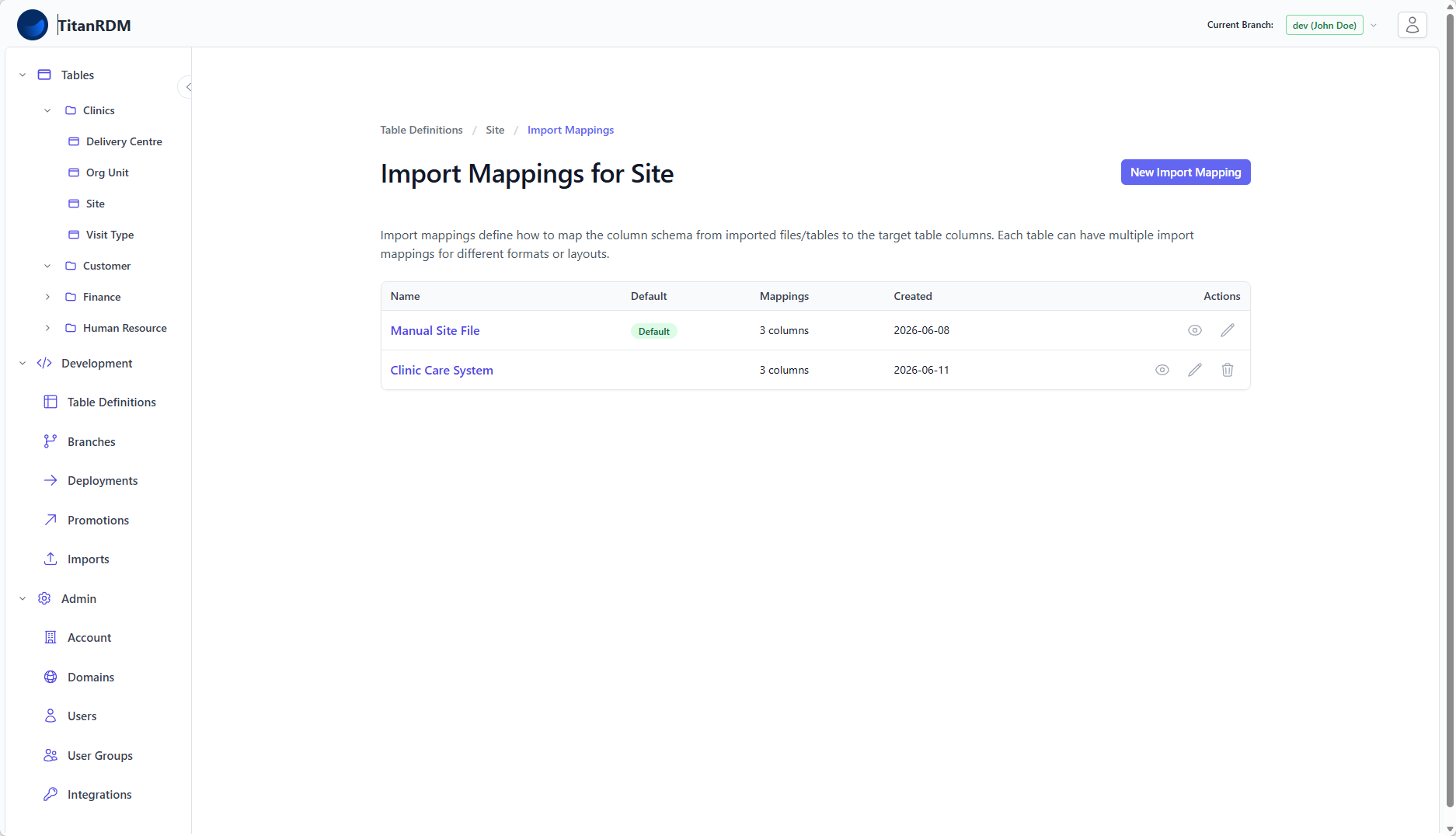
An import mapping defines how columns in an uploaded file map to columns in a table definition. Import mappings make repeated imports consistent and reliable — instead of relying on auto-matching by column name, you explicitly specify which file column maps to which table column.
Why Use Import Mappings?
Auto-matching (the default when no mapping is selected) works well when your file column names exactly match your table column names. Import mappings become essential when:
- File column names differ from table column names (e.g.,
CurrCodein the file maps tocurrency_codein the table) - You want to ignore certain file columns that are not relevant
- You import the same file structure regularly and want guaranteed consistency
- Multiple files with different structures feed into the same table
- You need to specify a delimiter other than comma (e.g., pipe
|, tab, semicolon) - You need to specify a date style (MDY or DMY) for date parsing
Import Mapping Properties
| Property | Required | Description |
|---|---|---|
| Name | Yes | A descriptive name (e.g., ERP Product Feed, Manual Currency Upload). Must be unique per table. |
| Date Style | Yes | How dates in the file are formatted. MDY = month/day/year, DMY = day/month/year. Default: MDY. |
| Is Default | No | If checked, this mapping is automatically pre-selected on the import page. Only one mapping per table can be the default. |
Column Mappings
Each import mapping contains one or more column mappings that define the file-to-table relationship:
| Property | Description |
|---|---|
| Source Column | The column name as it appears in the file header |
| Target Column | The table column this maps to |
| Format | Optional PostgreSQL format pattern for date, timestamp, and timestamptz columns (e.g., DD/MM/YYYY, MM-DD-YYYY HH24:MI:SS). Uses to_timestamp() / to_date() syntax. Only shown when the target column is a date/time type. |
Only columns with a mapping are imported. File columns without a mapping are ignored. Table columns without a mapping receive null values (or retain their existing value on update).
Date & Time Format Guide
When a column mapping targets a date, timestamp, or timestamptz column, you can supply an optional Format pattern. The format tells the importer how to parse the value in the file. If you leave the format blank, the system tries to auto-detect the format.
Dates & Timestamps That Don't Require a Format
These forms are recognised automatically:
- ISO 8601 / RFC-style (most reliable):
'2025-11-19'→ midnight on that date'2025-11-19 13:45''2025-11-19 13:45:12.345678''2025-11-19T13:45:12.3'(theTis fine)
- Named months and common English forms:
'Nov 19 2025 13:45''19 Nov 2025 13:45'
Ambiguous formats — Strings like
'01/02/2025'are valid but ambiguous. They rely on your Date Style for interpretation: - Date Style = MDY: interpreted as January 2, 2025 (month-day-year) - Date Style = DMY: interpreted as 1 February, 2025 (day-month-year)
- Fractional seconds are fine
- Whitespace is ignored
- For
timestamp: zone/offset info is ignored - For
timestamptz: zone/offset is parsed; if absent, session timezone is used
Things That Will Fail
- Impossible dates:
'2025-02-30'→ error - Non-recognised patterns (custom delimiters/ordering) → require a format to be specified
Custom Format Patterns
The format field uses PostgreSQL's to_timestamp() and to_date() format patterns.
Common Format Tokens
| Category | Tokens |
|---|---|
| Date | YYYY, YY (year); MM (month number); DD (day of month); DDD (day of year); J (Julian date) |
| Time | HH24, HH (hours); MI (minutes); SS (seconds); MS, US (milliseconds, microseconds); AM, PM |
| Month/Day Names | Mon, Month, Dy, Day |
| Time Zone / Offset | TZH (hours of offset), TZM (minutes of offset), OF (full offset like +10:00), TZ (abbreviation, e.g., PST, AEST) |
| Modifiers | FX (strict mode), TM (locale-aware), th/TH (ordinal) |
Example Format Strings
| Format String | Matches Input |
|---|---|
DD/MM/YYYY | '31/12/2025' |
MM-DD-YYYY HH24:MI:SS | '12-31-2025 23:59:59' |
YYYY-MM-DD"T"HH24:MI:SS | '2025-12-31T23:59:59' |
Mon DD, YYYY | 'Dec 31, 2025' |
Valid Time Formats
Time-only columns (time, timetz) accept these forms automatically:
| Example | Parsed Value |
|---|---|
'13:45' | 13:45:00 |
'13:45:12' | 13:45:12 |
'13:45:12.345' | 13:45:12.345 |
'1:45 PM' | 13:45:00 |
'01:45:05 am' | 01:45:05 |
'134512' | 13:45:12 |
'13.45.12' | 13:45:12 (dot or colon) |
'13:45:12Z' | 13:45:12 (Z ignored) |
Hours and minutes are required. For times with time zones, common abbreviations are valid (e.g., '13:45:00 PST') or numerical offsets like '13:45:00+10'.
Creating an Import Mapping
- Navigate to Development > Table Definitions
- Open the table definition you want to create a mapping for
- Click Import Mappings (in the table definition detail page or from the action menu)
- Click New Import Mapping
- Fill in:
- Name — descriptive identifier
- Date Style — select MDY or DMY
- Is Default — check if this should be the pre-selected mapping
- Choose a Sample File (CSV, Excel, JSON, or Parquet, maximum 100 MB).
- Click Create
The system will: - Upload the file - Analyse its structure and infer column names and data types - Auto-match file columns to existing table columns where names are similar - If the table has no columns yet, create new column definitions from the file
You are then redirected to the mapping editor to review and adjust the generated column mappings.
Reviewing and Adjusting Column Mappings
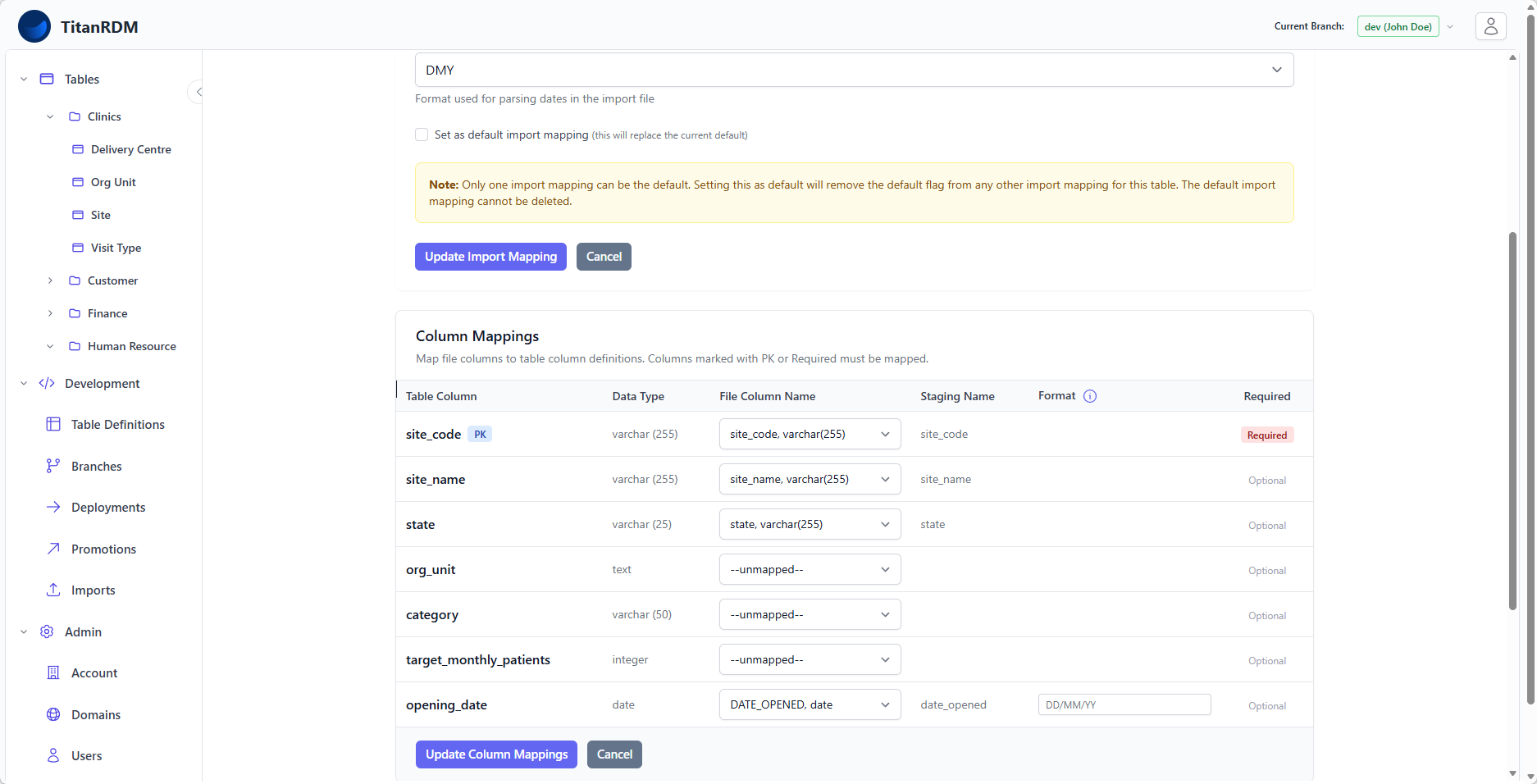
After the import mapping is created, the mapping editor opens automatically. The system pre-populates mappings based on the sample file:
- Mapped columns show the matched file column selected in the dropdown
- Unmapped columns show -- Do not map -- — select a file column from the dropdown to create a mapping
- For
date,timestamp, andtimestamptzcolumns, you can optionally specify a custom Format pattern - Primary key and Required columns must be mapped for imports to succeed
Adjust any mappings as needed, then click Update Column Mappings to save. You can return to edit the mapping at any time from the mapping's detail page.
Editing and Deleting
Editing
- Change the mapping name or date style from the mapping's edit page
- Add, edit, or remove individual column mappings
Setting as Default
Only one import mapping per table can be the default. When you mark a mapping as default, any previously default mapping is automatically un-marked.
Deleting
Import mappings are soft-deleted — they are marked as deleted and no longer appear in the import page dropdown, but the record is preserved for audit purposes.
Note: You cannot delete the default import mapping. Change the default to another mapping first, or remove the default flag.
Import Mappings and Promotions
Import mappings are part of the table definition and are included in promotions and clones. When you promote a table definition from Development to Test:
- The import mappings are copied to the target branch
- Column mappings are re-pointed to the equivalent columns on the target branch (matched by column key)
This means you only need to set up import mappings once on your development branch — they flow through the promotion pipeline automatically.
Using an Import Mapping
When importing data (either via the UI or the API):
- Navigate to the table's data grid
- Click Import Data
- In the Import Mapping dropdown, select your mapping (or leave as "Auto-match" to skip)
- Upload your file
- Click Start Import
The import process uses the mapping to: - Match file columns to table columns using the explicit column mappings - Parse dates using the specified date style (MDY or DMY)
Auto-Match vs Named Mapping
| Behaviour | Auto-Match | Named Mapping |
|---|---|---|
| Column matching | Case-insensitive name comparison | Explicit source → target mapping |
| Unmatched file columns | Ignored | Ignored |
| Unmatched table columns | Null (or unchanged on update) | Null (or unchanged on update) |
| Date style | System default | Specified in mapping |
| Consistency | Depends on file headers being consistent | Guaranteed |
Best Practices
- Name mappings clearly — include the source system or file type (e.g.,
SAP GL Extract,Monthly Product CSV) - Set a default for tables that are imported regularly from the same source
- Use explicit mappings for automated/SDK imports to avoid breakage if file headers change
- Review column mappings after adding new columns to a table definition — new columns need to be added to the mapping manually
Related Pages
- Importing Data — using mappings when importing
- Creating Tables — defining the columns that mappings point to
- SDK Imports and Exports — specifying mappings in API calls
- Promotions — how mappings flow between branches