Domains
Available to: All users (view); Admins (create/edit/delete) Minimum plan: Free
A domain is an information subject area (e.g., Finance, Sales, HR) used to organise your tables and control who can access them. Every table belongs to exactly one domain. Permissions are granted at the domain level (or at the table level), so you can give your finance team access to finance tables without exposing HR data.
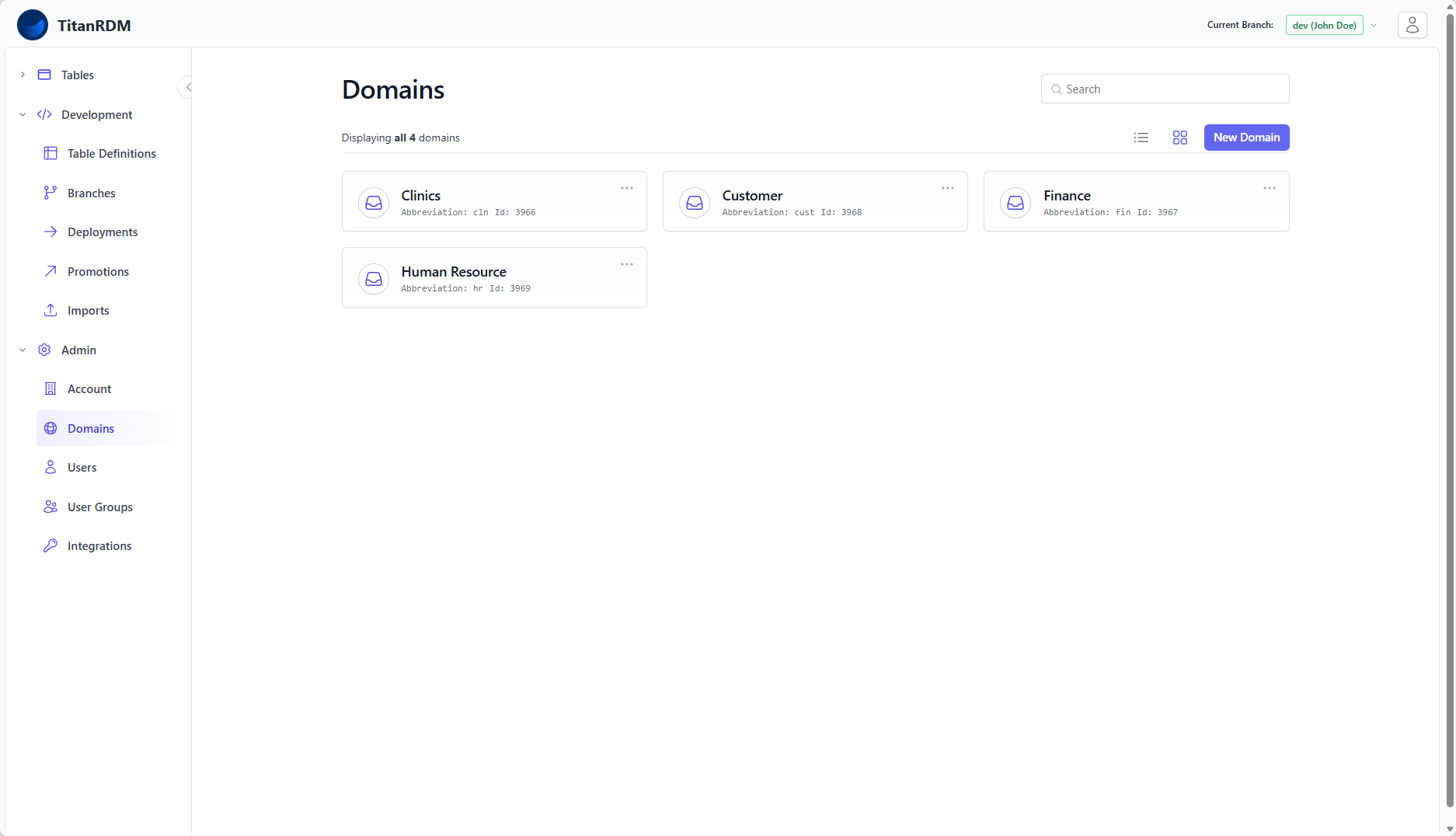
What Domains Do
Domains serve two purposes in TitanRDM:
1. Organisation
Every table definition belongs to exactly one domain. Domains let you group tables by business function, department, or any other logical boundary that makes sense for your organisation. Common examples:
| Domain | Abbreviation | Example Tables |
|---|---|---|
| Finance | fin | Chart of Accounts, Cost Centres, Currency Codes |
| Sales | sale | Product Categories, Sales Regions, Customer Types |
| HR | hr | Job Titles, Department Codes, Leave Types |
| Operations | ops | Location Codes, Equipment Types, Status Codes |
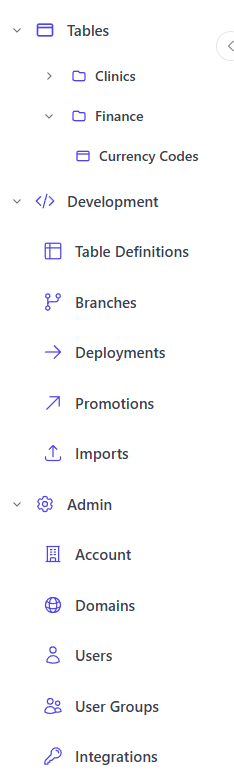
The sidebar navigation organises your tables by domain, making it easy to find what you need.
2. Access Control
When you create a domain, TitanRDM automatically creates two user groups with permissions scoped to that domain:
| User Group | Permission | What It Grants |
|---|---|---|
| Domain [Name] Data Manager | data manager | Ability to view and edit data in tables within this domain |
| Domain [Name] Developer | develop | Ability to create, modify, and manage table definitions within this domain |
By adding users to these groups, you control who can work with which subject areas. An account administrator can access all domains regardless of group membership.
Creating a Domain
- Navigate to Admin > Domains in the sidebar
- Click New Domain
- Fill in the form:
- Name — a descriptive name (e.g.,
Finance). Must be unique within your account. - Description — optional context about what this domain covers
- Abbreviation — a short code, maximum 4 characters (e.g.,
fin). Must start with a letter or underscore, and can only contain letters, digits, or underscores. The abbreviation is used the prefix (e.g.fin_...fin_gl_accounts) for physical database table names.
- Name — a descriptive name (e.g.,
- Click Create Domain
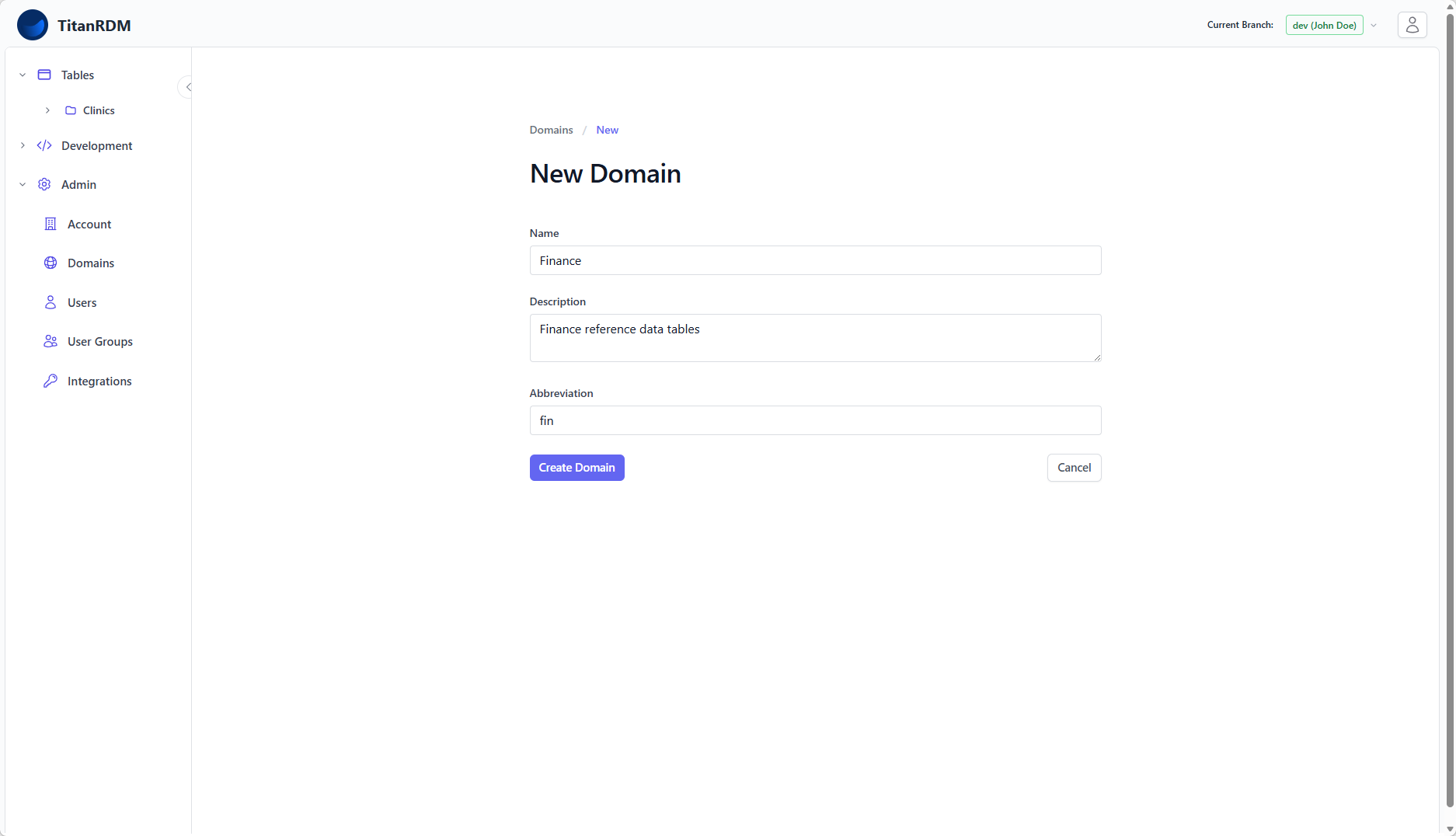
Note: The abbreviation is automatically lowercased. Once created, the abbreviation forms part of the database table naming convention, so choose it carefully (e.g. fin_...fin_gl_accounts).
Editing and Deleting Domains
- Edit: Navigate to the domain's detail page and click Edit. You can change the name and description. The abbreviation cannot be changed after creation because it is embedded in physical table names.
- Delete: From the domain's detail page, click Delete. This will remove the domain and its associated user groups and permissions.
Warning: Deleting a domain does not delete the table definitions within it, but those tables will become orphaned. Reassign tables to another domain before deleting.
Domain Permissions in Detail
Permissions in TitanRDM are additive — a user's effective access is the union of all permissions from all user groups they belong to. Domain permissions work alongside branch permissions:
- To create or modify table definitions in a domain, a user needs both:
developpermission on the domain (via the Domain Developer group)developpermission on the branch (via the Branch Developer group)
- To edit data in a domain's tables, a user needs:
data managerpermission on the domain (via the Domain Data Manager group)
- Account administrators bypass all domain permission checks
This two-dimensional permission model (domain x branch) gives you fine-grained control over who can do what, where.
Domains in the Sidebar
The Tables section of the sidebar displays your domains as expandable groups. Click a domain name to see its deployed tables. The tables shown depend on your current branch — each branch has its own set of deployed tables.
Related Pages
- Creating Tables — how to create table definitions within a domain
- User Groups — managing the groups auto-created for domains
- Permissions — how the permission model works across domains and branches
- Your First Table — a tutorial that starts with creating a domain