Table Definitions
Available to: Developers, Admins Minimum plan: Free
A table definition is the blueprint for a reference data table. It describes the table's name, domain, and structure — the set of column definitions that specify each column's name, data type, constraints, and validation rules. Table definitions are metadata; the actual physical database table is created when you deploy.
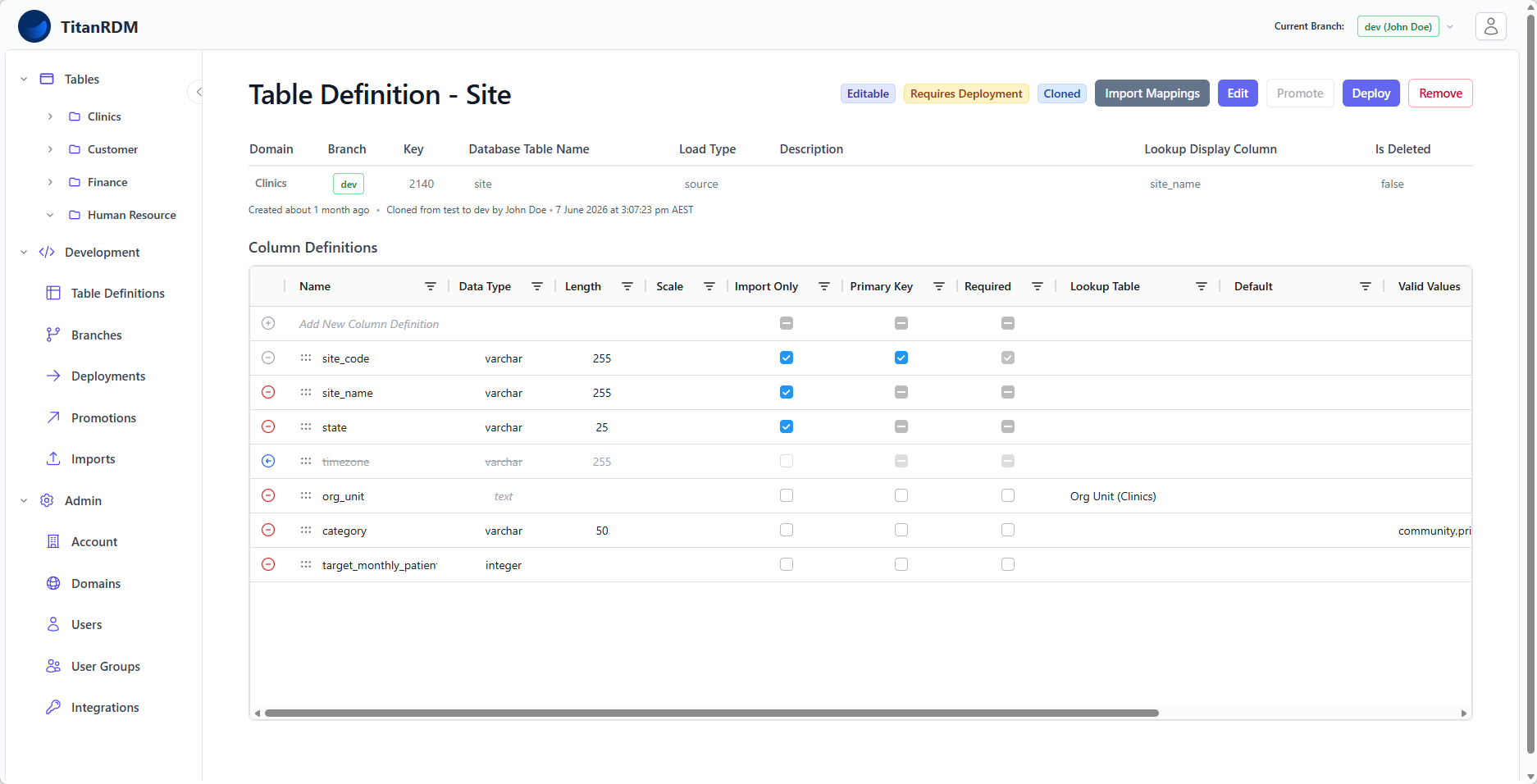
Table Definitions vs Deployed Tables
TitanRDM separates the definition of a table from its physical existence in the database:
| Concept | What It Is | Where You Work With It |
|---|---|---|
| Table Definition | The editable metadata describing a table's structure (columns, types, keys). Lives on a branch. | Development > Table Definitions |
| Deployed Table | The actual physical database table created from a table definition after deployment. Contains your data. | Tables (sidebar) |
This separation is fundamental to how TitanRDM works:
- You create or edit a table definition on your current branch
- You deploy to apply those changes to the physical database
- Users view and edit data in the deployed table
Changes to a table definition do not affect the deployed table until you explicitly deploy. This gives you a safe space to make structural changes, review them, and then apply them in a controlled way.
Table Definition Properties
When you create or edit a table definition, you configure these properties:
| Property | Required | Description |
|---|---|---|
| Branch | Yes | The branch this definition lives on. Pre-filled with your current branch (read-only). |
| Domain | Yes | The information domain this table belongs to (e.g., Finance, Sales). |
| Name | Yes | A human-readable name for the table (e.g., Currency Codes). Must be unique within the branch. Must start with a letter or underscore. |
| Database Table Name | No | The physical name used in the database (e.g., currency_codes). Auto-generated from the name but can be customised. Must not contain spaces. |
| Description | No | Free-text description. Shown to users on the data entry page — useful for instructions or context. |
| Allow new rows to be added manually | No | If enabled, users can add new rows to this table through the UI. Data uploads are append/update only—new rows added by the user are preserved. If disabled, new rows can only be added to the table through an upload (manual or SDK/API). Users can still edit mappings, categorisation columns, etc. Upon upload, a full sync, including deletes, occurs. Generally suitable where the source is another system. |
| Lookup Display Column | No | Which column's value to show when this table is referenced by a foreign key in another table. Defaults to the first string column. Only available after columns are defined. |
| Key | Auto | A system-generated numeric identifier that stays consistent across branches. Used to track the same table definition as it is promoted through environments. |
Column Definitions
Each table definition has one or more column definitions that describe its columns. You manage columns from the Edit Columns page, which uses an interactive grid editor.
Column Properties
| Property | Required | Description |
|---|---|---|
| Name | Yes | The column name. Must start with a letter or underscore. Must be unique within the table. |
| Data Type | Yes | The PostgreSQL data type. See Supported Data Types below. |
| Length | No | Maximum length for varchar/character, or fractional-second precision for timestamp/time types (0–6). |
| Scale | No | Number of decimal places for decimal types. |
| Primary Key | No | Mark this column as part of the table's primary key. At least one PK column is recommended. |
| Required | No | If checked, this column cannot be null. |
| Foreign Key | No | If checked, this column references another table. Select the referenced table to enable lookup dropdowns in the data grid. |
| Description | No | Describes the column. Shown as a tooltip in the data grid. |
| Valid Values | No | A comma-separated list of allowed values. Enforced as a dropdown in the data grid. |
| Display Order | Auto | Controls the left-to-right order of columns in the data grid. Drag to reorder. |
Importing Table Structure
Instead of defining columns manually, you can import a table structure from:
- SQL DDL — paste or upload a
CREATE TABLEstatement and TitanRDM will parse the columns and data types - File upload — upload a data file (CSV, Excel, JSON, Parquet) and TitanRDM will infer the column names and data types using schema probing
See Importing Schema for more details.
This is a fast way to bootstrap a table definition from an existing source.
Supported Data Types
| Category | Types | Notes |
|---|---|---|
| Text | varchar, character, text | varchar and character support a length parameter. text is unlimited. |
| Integer | integer, smallint, bigint | Whole numbers of different ranges. |
| Decimal | decimal, real, double | decimal supports length (precision) and scale. real and double are floating-point. |
| Boolean | boolean | True/false values. |
| Date/Time | date, time, timetz, timestamp, timestamptz | timetz and timestamptz include timezone. Length parameter controls fractional-second precision (0–6). |
| Binary | binary | Binary data. |
Lookup Table Columns
A Lookup Table column definition references another table definition. When editing data in the grid, Lookup Table columns display a lookup dropdown showing values from the referenced table. The dropdown shows the referenced table's lookup display column (configurable on the referenced table definition). A Lookup Table column definition will have its data type set to text and disabled.
Foreign key relationships also affect deployment ordering — TitanRDM automatically deploys referenced tables before tables that depend on them. There are controls to ensure that deployment ordering is respected when deploying tables.
System Columns
When a table definition is deployed, TitanRDM automatically adds system columns that you do not need to define:
| System Column | Purpose |
|---|---|
trdm_sk | Auto-generated surrogate key (primary key for the physical table) |
trdm_created_at | Timestamp when the row was created |
trdm_updated_at | Timestamp when the row was last modified |
trdm_updated_by | The user who last modified the row |
trdm_is_deleted | Soft-delete flag for tracking removed rows |
These columns are managed by the system and are not visible in the column definition editor. They are visible (but disabled) in the Table data editor.
Table Definition Lifecycle
A table definition moves through several states during its life:
Create → Edit Columns → Deploy → (Edit → Deploy again) → Promote → Deploy on target branch
- Create — define the table name, domain, and load type
- Add/edit columns — define the structure
- Deploy — apply changes to create or alter the physical table
- Iterate — modify columns and redeploy as needed
- Promote — move the definition to another branch (Business/Enterprise only)
- Deploy on target — apply the promoted definition on the target branch
Note: A table definition that has been modified since its last deployment shows a "Needs Deploy" status on the dashboard and in the table definitions list.
Cloning Table Definitions
You can copy table definitions from higher branches to lower branches to make changes to them. Like best practice software development, you should only make changes in Private development branches. In-fact TitanRDM enforces this and doesn't support changes to table definitions directly in shared branches. To make changes to a table definition, you must first clone it to a Private development branch:
- Switch to the parent branch and navigate to the Table Definitions page
- Use the tick box column to select the table definition(s) you want to clone
- Click the Clone button to clone the tables to your private development branch.
Alternatively.
- Navigate to the Table Definition's show page - Development > Table Definitions and click on the table definition in the list
- Click the Clone button to clone the table to your private development branch
Cloned definitions appear as new (undeployed) on your private development branch.
Removing Tables
- Remove — permanently deletes the table definition and its deployed snapshot. The physical table is renamed with a
_t_remsuffix so data is preserved, but the definition itself is hard-deleted and cannot be restored. - Automatic cleanup — physical tables left behind with the
_t_remsuffix are dropped by a daily background job after 7 days.
Related Pages
- Your First Table — end-to-end tutorial
- Creating Tables — detailed how-to guide
- Column Types Reference — full data type details
- Foreign Keys — setting up relationships between tables
- Deployments — how table definitions become physical tables
- Domains — organising tables into subject areas