Promoting Changes
Available to: Developers, Admins Minimum plan: Free (all plans include branching and promotions)
This guide walks through the step-by-step process of promoting table definition changes from one branch to another in TitanRDM. Promotions move definitions upward through the branch hierarchy (e.g., Development → Test → Production), with a review and approval step at each level. For the conceptual overview, see Promotions.

Prerequisites
- Any plan — all plans include multiple branches and promotions
- At least one table definition on your current branch that has not yet been promoted (marked
has_been_promoted = false) - Editor or Developer permission on the source branch
- A parent branch must exist (you cannot promote from the top-level Production branch)
Step 1: Select Table Definitions to Promote
There are two ways to start a promotion:
From the Promotions Page
- Navigate to Development > Promotions
- Click New Promotion
- TitanRDM shows all unpromoted table definitions on your current branch
From the Table Definitions Page
- Navigate to Development > Table Definitions
- Select one or more tables using the checkboxes
- Click Promote in the toolbar
- You are redirected to the New Promotion page with your selections pre-checked
The Selection Grid
The New Promotion page shows:
| Column | Description |
|---|---|
| Checkbox | Select which tables to include |
| Name | Table definition name |
| Domain | Which domain the table belongs to |
| Is Deleted | Whether the table is marked for deletion |
You can filter by name or domain, and sort by name, domain, or selection status.
The from branch (source) is your current branch. The to branch (target) is automatically set to your current branch's parent.
- Click Create Promotion
Step 2: Review the Diff
After creation, you are taken to the promotion detail page. TitanRDM compares each selected table definition on the source branch against its counterpart (if any) on the target branch and displays a comprehensive diff.
Diff Categories
The diff is organised into multiple levels:
| Category | What It Shows |
|---|---|
| Table changes | Tables being created, updated, or deleted on the target |
| Table attribute changes | Changes to table properties (name, DB name, domain, description, load type, lookup display column) |
| Column changes | Columns being added, modified, or removed |
| Column attribute changes | Changes to column properties (name, data type, length, scale, PK, FK, required, valid values) |
| Import mapping changes | Import mappings being added, modified, or removed |
| Import mapping attribute changes | Changes to mapping properties (name, delimiter, date style, default flag) |
| Import column mapping changes | Column mappings being added, modified, or removed |
| Import column mapping attribute changes | Changes to individual column mapping properties |
Each change shows old value (on the target branch) and new value (from the source branch) side by side.
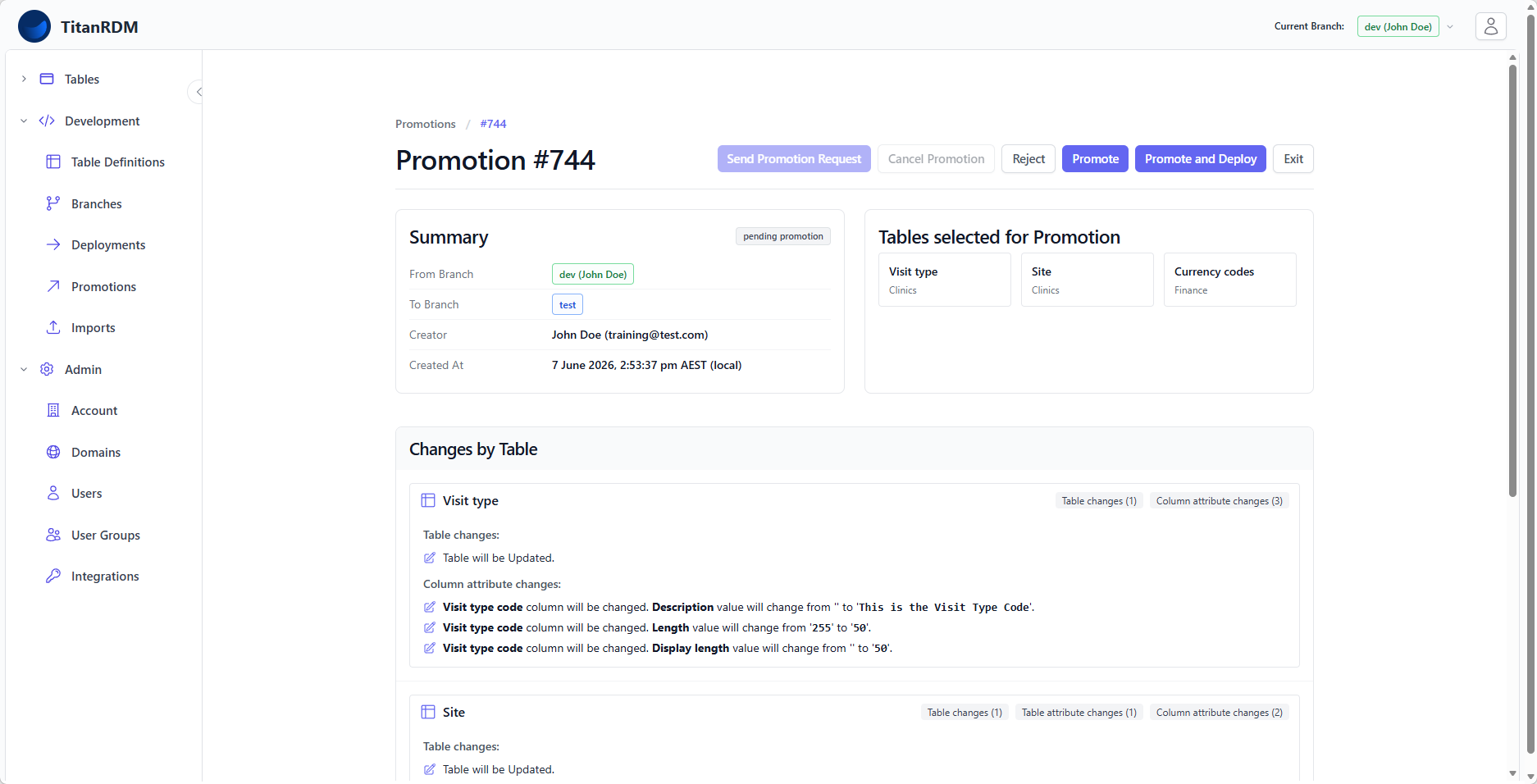
Step 3: Request Approval or Approve
Depending on your permissions, you have different options:
If You Are an Approver on the Target Branch
You can act immediately:
| Action | What It Does |
|---|---|
| Promote | Copies table definitions to the target branch. Definitions still need to be deployed separately. |
| Promote and Deploy | Copies definitions and immediately deploys them on the target branch. (Coming soon) |
| Reject | Marks the promotion as rejected. |
| Abandon | Discards the promotion entirely. |
If You Are Not an Approver
- Click Send Request
- Optionally add a comment explaining the changes
- The promotion status changes to Requested
- Approvers on the target branch receive an email notification with a link to the promotion
The approvers can then review the diff and approve, reject, or abandon.
Step 4: After Approval (Promote)
When a promotion is approved (status changes to Promoted):
- Table definitions are cloned from the source branch to the target branch
- Column definitions, import mappings, and column mappings are all copied
- Foreign key references are re-pointed to the equivalent tables on the target branch
- The source table definitions are marked as
has_been_promoted = true(they disappear from the unpromoted list)
Important: Deployment Is Still Required
Promoting does not change the physical database on the target branch. After promotion:
- Switch to the target branch
- Navigate to Development > Deployments
- The promoted table definitions appear as requiring deployment
- Create a new deployment and deploy them
Cancelling a Promotion
If you created a promotion but no longer want to proceed:
- Open the promotion detail page
- Click Cancel
- Optionally add a comment
- The status changes to Cancelled
Only the creator (or admin) can cancel a promotion that has not yet been approved.
Abandoning a Promotion
To abandon a promotion after it has been requested:
- Open the promotion detail page
- Click Abandon
- Optionally add a comment
- The status changes to Abandoned
- Branch approvers are notified via email
Retrying a Failed Promotion
If a promotion fails (e.g., due to a missing foreign key reference on the target branch):
- The status changes to Failed
- The error message is displayed on the detail page
- Fix the underlying issue (e.g., promote the referenced table first)
- Click Retry to re-run the promotion
Promotion Actions (Audit Trail)
Every promotion maintains a complete audit trail:
| Action | Description |
|---|---|
| Created | Promotion prepared with selected table definitions |
| Request Sent | Approval request emailed to target branch approvers |
| Promoted | Table definitions successfully copied to target branch |
| Rejected | An approver rejected the promotion |
| Cancelled | The creator cancelled the promotion |
| Abandoned | The promotion was discarded; approvers notified |
| Failed | An error occurred during the clone operation |
Each action records the user, timestamp, and optional comment.
Promotions List
The promotions index page at Development > Promotions shows all promotions:
- Filtered by default based on your current branch:
- Private branch → filters by from-branch (shows your outgoing promotions)
- Shared branch → filters by to-branch (shows incoming promotions for review)
- Filter by from-branch, to-branch, status, creator, or approver
- Sort by from-branch, to-branch, status, created date, or promoted date
- Paginated (12 per page)
Typical Workflows
Standard: Dev → Test → Prod
1. Edit table definitions on Development
2. Deploy on Development (test locally)
3. Create promotion: Development → Test
4. Approver reviews and approves (Promote)
5. Switch to Test, deploy the promoted definitions
6. Validate on Test
7. Create promotion: Test → Production
8. Approver reviews and approves (Promote)
9. Switch to Production, deploy
Feature Branch: Private → Dev → Test → Prod
1. Create a private branch from Development
2. Clone table definitions from Development
3. Make changes on the private branch
4. Deploy on the private branch (test in isolation)
5. Create promotion: Private Branch → Development
6. Approver reviews and approves
7. Switch to Development, deploy
8. Continue with standard workflow above
9. Delete the private branch when done
Self-Approval
If you are both the creator and an approver on the target branch, you can approve your own promotions immediately without waiting. TitanRDM does not enforce a "four-eyes" principle — this is left to your organisation's policies.
Tips
- Promote related tables together — if Table A references Table B, include both in the same promotion to avoid missing reference errors
- Check the diff carefully — especially for column deletions, which will result in data loss when deployed on the target branch
- Promote frequently — smaller promotions are easier to review and less likely to have conflicts
- Use the "from Table Definitions" workflow — selecting tables and clicking Promote is faster than starting from the Promotions page for common cases
Related Pages
- Promotions (Concept) — lifecycle and architecture overview
- Deploying Changes — the step after promotion
- Working with Branches — creating feature branches
- Cloning Tables — an alternative to promotion for copying definitions
- Permissions — approver permissions