User Groups
Available to: Account Administrators Minimum plan: Free
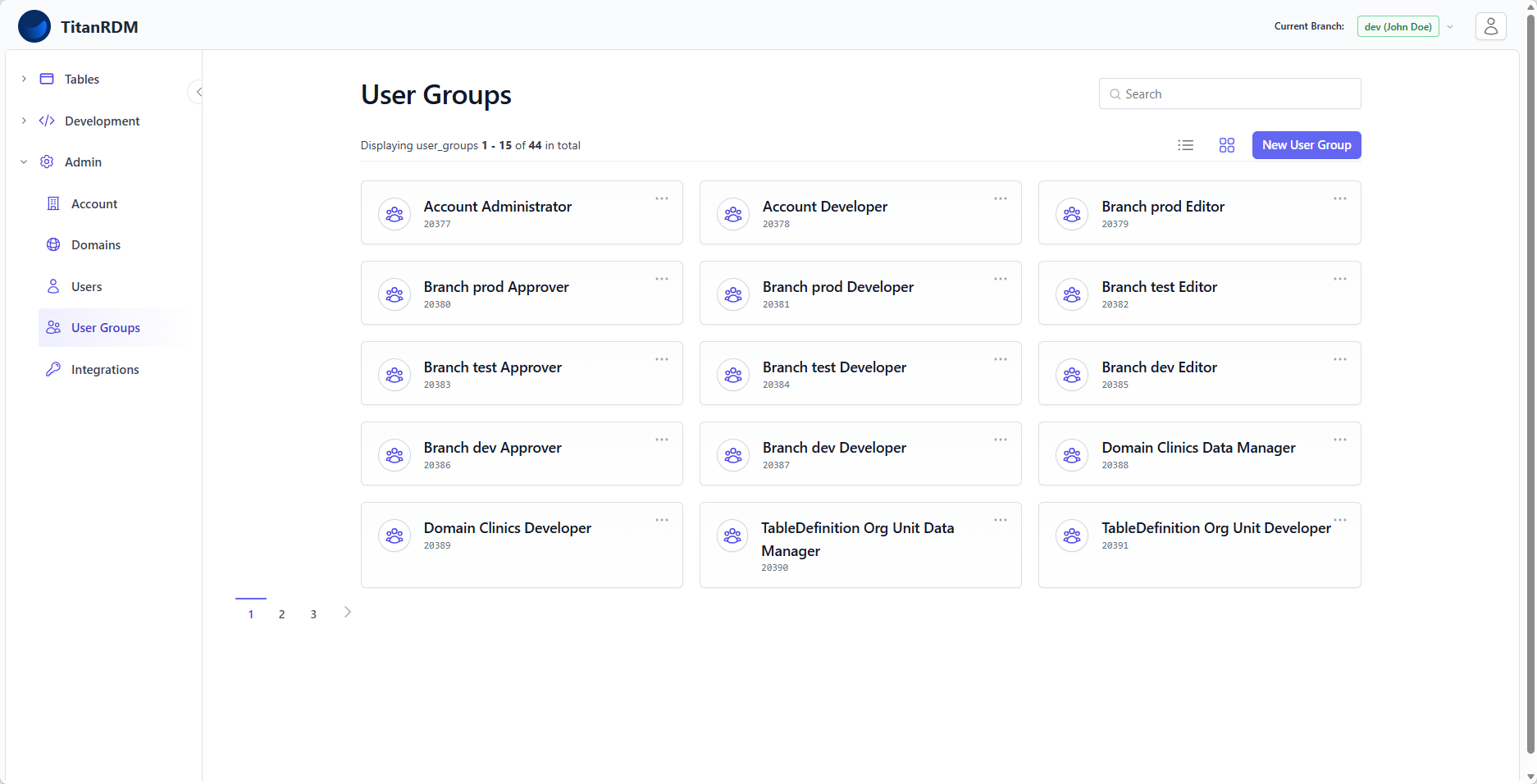
User groups are the building blocks of TitanRDM's permission system. Every permission is granted to a user group, and users gain permissions by being assigned to groups. This page covers how to view, understand, and manage user group assignments.
Prerequisites
- Account Administrator group membership to manage user group assignments
How User Groups Work
Permissions in TitanRDM follow this chain:
User → User Group → Permission → Resource (Domain, Branch, Table, Account)
A user can belong to multiple user groups and gains the combined permissions of all their groups.
System-Created User Groups
TitanRDM automatically creates user groups when you create domains, branches, and table definitions. You do not need to create them manually.
Account-Level Groups
Created during account activation:
| Group | Permission | Purpose |
|---|---|---|
| Account Administrator | admin on Account | Full access to everything — user management, billing, all branches and domains |
| Account Developer | develop on Account | Grants development capabilities account-wide |
Domain-Level Groups
Created when a new domain is added:
| Group | Permission | Purpose |
|---|---|---|
| Domain [Name] Developer | develop on Domain | Create/edit table definitions in this domain |
| Domain [Name] Data Manager | data manager on Domain | View and edit data in deployed tables in this domain |
Branch-Level Groups
Created when a new branch is added:
| Group | Permission | Purpose |
|---|---|---|
| Branch [Name] Editor | edit on Branch | Branch membership for End Users; grants no development actions |
| Branch [Name] Approver | approve on Branch | Approve promotions and deployments targeting this branch |
| Branch [Name] Developer | develop on Branch | Full development access on this branch |
Table-Level Groups
Created when a new table definition is added:
| Group | Permission | Purpose |
|---|---|---|
| Table [Name] Editor | edit on TableDefinition | Edit this specific table definition |
Viewing User Groups
User groups are visible in several places:
On the Domain Page
- Navigate to Domains
- Click a domain name
- The User Groups section shows the domain's groups and their members
On a Branch Detail Page
- Navigate to Development > Branches
- Click a branch name
- The User Groups section shows the branch's groups and their members
On a Table Definition Detail Page
- Navigate to Development > Table Definitions
- Click a table definition
- Click Edit
- The User Groups section shows groups associated with this table
Assigning Users to Groups
To add a user to a user group:
- Navigate to the resource that owns the group (Domain, Branch, or Table Definition)
- Find the user group in the User Groups section
- Click the group to view its members
- Click New User Assignment
- Type the user's name and select the user from the dropdown
- Click Save
End User Restrictions
End Users (license type end_user) can only be assigned to groups with specific permission types:
| Allowed | Not Allowed |
|---|---|
Editor groups (edit permission) | Admin groups |
Data Manager groups (data manager permission) | Developer groups |
| Approver groups |
If you attempt to assign an End User to a restricted group, the assignment is blocked with an error message.
Removing Users from Groups
- Navigate to the user group's member list
- Find the user you want to remove
- Click ... then Delete User Assignment (or the delete icon)
- The assignment is immediately deleted
Understanding Group Naming
TitanRDM uses a consistent naming convention for auto-created groups:
[Scope] [Resource Name] [Role]
Examples:
- Domain Finance Developer — Developer role on the Finance domain
- Branch Development Approver — Approver role on the Development branch
- Table Currency Codes Editor — Editor role on the Currency Codes table
Admin Group
The Account Administrator group is special:
- It is created during account activation
- It is a system group (
is_system_group = true) and cannot be deleted - It is the admin group (
is_admin_group = true) - Members bypass all permission checks — they have full access to everything
- At least one Developer user must always be in this group
Tip: Keep the admin group small. For day-to-day work, use domain and branch groups to grant targeted permissions.
Effective Permissions
A user's effective permissions are the union of all their group memberships. For example:
| User Group Membership | Grants |
|---|---|
| Domain Finance Data Manager | View/edit data in Finance domain tables |
| Branch Development Editor | Branch membership on Development (End User role) |
| Branch Test Approver | Approve promotions and deployments to Test |
Combined: the user can view and edit data in Finance domain tables, and approve promotions to Test — but cannot create or modify table definitions (no Developer group) or approve anything on Production.
Private Branch Groups
When a private branch is created, the creator is automatically added to all the branch's groups (Editor, Approver, Developer). Other users can be granted access to a private branch by being added to its groups.
Related Pages
- Permissions — the permission model in detail
- Managing Users — adding and removing users
- Domains — domain groups and access control
- Branches — branch groups and permissions